<?xml version="1.0" encoding="utf-8"?>
<feed xmlns="http://www.w3.org/2005/Atom">
  <author>
    <name>安亚博</name>
  </author>
  <generator uri="https://hexo.io/">Hexo</generator>
  <id>https://blog.anzaielf.cn/</id>
  <link href="https://blog.anzaielf.cn/" rel="alternate"/>
  <link href="https://blog.anzaielf.cn/atom.xml" rel="self"/>
  <rights>All rights reserved 2026, 安亚博</rights>
  <subtitle>喜欢研究各种计算机技术。</subtitle>
  <title>安先生的个人站</title>
  <updated>2026-05-03T03:26:42.000Z</updated>
  <entry>
    <author>
      <name>安亚博</name>
    </author>
    <category term="Linux" scheme="https://blog.anzaielf.cn/tags/Linux/"/>
    <category term="运维" scheme="https://blog.anzaielf.cn/tags/%E8%BF%90%E7%BB%B4/"/>
    <id>https://blog.anzaielf.cn/2026/05/03/ZabbixSnmpTrap%E7%9B%91%E6%8E%A7%E7%AC%94%E8%AE%B0/</id>
    <link href="https://blog.anzaielf.cn/2026/05/03/ZabbixSnmpTrap%E7%9B%91%E6%8E%A7%E7%AC%94%E8%AE%B0/"/>
    <published>2026-05-03T03:13:42.000Z</published>
    <summary>
      <![CDATA[<h2 id="环境介绍"><a href="#环境介绍" class="headerlink" title="环境介绍"></a>环境介绍</h2><p>操作系统：Centos 7.9<br>软件环境：zabbix-server 4.2.8、NET-SNMP version 5.7.2、snmpttv1.4beta2<br>网关型号：鼎信通达MTG2000-X-8E1</p>
<h2 id="一、核心逻辑"><a href="#一、核心逻辑" class="headerlink" title="一、核心逻辑"></a>一、核心逻辑</h2><p><strong>网关(MTG2000-X-8E1)发送 Trap -&gt; Zabbix Proxy(安装snmptrapd和snmptt) 上的 snmptrapd 接收 -&gt; snmptt 翻译并过滤 -&gt; 写入日志文件 -&gt; Zabbix Server 读取日志并触发告警</strong></p>]]>
    </summary>
    <title>ZabbixSnmpTrap监控笔记</title>
    <updated>2026-05-03T03:26:42.000Z</updated>
  </entry>
  <entry>
    <author>
      <name>安亚博</name>
    </author>
    <category term="办公" scheme="https://blog.anzaielf.cn/tags/%E5%8A%9E%E5%85%AC/"/>
    <id>https://blog.anzaielf.cn/2025/11/13/%E5%B7%A5%E4%BD%9C%E6%8A%80%E5%B7%A7%E5%90%88%E9%9B%86%EF%BC%88%E5%90%AB%E6%89%B9%E5%A4%84%E7%90%86%E6%80%BB%E7%BB%93%EF%BC%89/</id>
    <link href="https://blog.anzaielf.cn/2025/11/13/%E5%B7%A5%E4%BD%9C%E6%8A%80%E5%B7%A7%E5%90%88%E9%9B%86%EF%BC%88%E5%90%AB%E6%89%B9%E5%A4%84%E7%90%86%E6%80%BB%E7%BB%93%EF%BC%89/"/>
    <published>2025-11-13T05:14:23.000Z</published>
    <summary>
      <![CDATA[<h2 id="日常工作流"><a href="#日常工作流" class="headerlink" title="日常工作流"></a>日常工作流</h2><h3 id="一键启动办公窗口批处理文件——开始工作-bat"><a href="#一键启动办公窗口批处理文件——开始工作-bat" class="headerlink" title="一键启动办公窗口批处理文件——开始工作.bat"></a>一键启动办公窗口批处理文件——开始工作.bat</h3><figure class="highlight bash"><table><tbody><tr><td class="gutter"><pre><span class="line">1</span><br><span class="line">2</span><br><span class="line">3</span><br><span class="line">4</span><br></pre></td><td class="code"><pre><code class="hljs bash">@<span class="hljs-built_in">echo</span> off<br>start <span class="hljs-string">""</span> <span class="hljs-string">"E:\文档\1-DESKTOP-HNSBDZ文档汇总"</span><br>start <span class="hljs-string">""</span> <span class="hljs-string">"E:\快捷方式"</span><br>start <span class="hljs-string">""</span> <span class="hljs-string">"D:\下载"</span><br></code></pre></td></tr></tbody></table></figure>]]>
    </summary>
    <title>工作技巧合集（含批处理总结）</title>
    <updated>2026-02-26T07:42:56.000Z</updated>
  </entry>
  <entry>
    <author>
      <name>安亚博</name>
    </author>
    <category term="Linux" scheme="https://blog.anzaielf.cn/tags/Linux/"/>
    <category term="运维" scheme="https://blog.anzaielf.cn/tags/%E8%BF%90%E7%BB%B4/"/>
    <id>https://blog.anzaielf.cn/2025/11/13/ProxmoxVirtualEnvironment%E4%B9%8B%E5%A4%96%E7%BD%91%E8%AE%BF%E9%97%AEfrp%E5%86%85%E7%BD%91%E7%A9%BF%E9%80%8F/</id>
    <link href="https://blog.anzaielf.cn/2025/11/13/ProxmoxVirtualEnvironment%E4%B9%8B%E5%A4%96%E7%BD%91%E8%AE%BF%E9%97%AEfrp%E5%86%85%E7%BD%91%E7%A9%BF%E9%80%8F/"/>
    <published>2025-11-13T04:49:42.000Z</published>
    <summary>
      <![CDATA[<h2 id="环境介绍"><a href="#环境介绍" class="headerlink" title="环境介绍"></a>环境介绍</h2><p>操作系统：ProxmoxVE_8.4<br>Windows服务端：frp_0.63.0<br>Linux客户端：frp_0.63.0</p>
<hr>
<h2 id="端口解析"><a href="#端口解析" class="headerlink" title="端口解析"></a>端口解析</h2><p>域名→公网IP:443→nginx代理到127.0.0.1:自定义端口8XXX<br>域名:自定义端口→公网IP:自定义端口→frp代理到192.168.XXX.XXX:自定义端口8XX6</p>
<h2 id="服务端（云服务器）"><a href="#服务端（云服务器）" class="headerlink" title="服务端（云服务器）"></a>服务端（云服务器）</h2>]]>
    </summary>
    <title>ProxmoxVirtualEnvironment之外网访问frp内网穿透</title>
    <updated>2026-06-19T16:06:36.000Z</updated>
  </entry>
  <entry>
    <author>
      <name>安亚博</name>
    </author>
    <category term="操作系统" scheme="https://blog.anzaielf.cn/tags/%E6%93%8D%E4%BD%9C%E7%B3%BB%E7%BB%9F/"/>
    <category term="Linux" scheme="https://blog.anzaielf.cn/tags/Linux/"/>
    <category term="办公" scheme="https://blog.anzaielf.cn/tags/%E5%8A%9E%E5%85%AC/"/>
    <id>https://blog.anzaielf.cn/2025/03/13/Ubuntu%E7%B3%BB%E7%BB%9F%E6%93%8D%E4%BD%9C%E7%AC%94%E8%AE%B0/</id>
    <link href="https://blog.anzaielf.cn/2025/03/13/Ubuntu%E7%B3%BB%E7%BB%9F%E6%93%8D%E4%BD%9C%E7%AC%94%E8%AE%B0/"/>
    <published>2025-03-13T02:23:05.000Z</published>
    <summary>
      <![CDATA[<h2 id="环境介绍"><a href="#环境介绍" class="headerlink" title="环境介绍"></a>环境介绍</h2><p>操作系统：Ubuntu 20.04 server 64bit和Windows 10专业版22H2<br>软件版本：Chrome、RealVNC Viewer 7.7.0、TeamViewer、rdesktop、WPS</p>
<h2 id="准备工作"><a href="#准备工作" class="headerlink" title="准备工作"></a>准备工作</h2><p>所需工具：<br>U盘一个（最好8G以上）、Ubuntu ISO镜像一个、UltraISO。制作Ubuntu安装U盘</p>
<h2 id="安装系统"><a href="#安装系统" class="headerlink" title="安装系统"></a>安装系统</h2><p>自定义分区：</p>]]>
    </summary>
    <title>Ubuntu系统操作笔记</title>
    <updated>2025-03-13T02:36:48.000Z</updated>
  </entry>
  <entry>
    <author>
      <name>安亚博</name>
    </author>
    <category term="杂记" scheme="https://blog.anzaielf.cn/tags/%E6%9D%82%E8%AE%B0/"/>
    <id>https://blog.anzaielf.cn/2025/03/13/%E8%BF%9C%E7%A8%8B%E6%97%A0%E6%98%BE%E7%A4%BA%E5%99%A8%E4%B8%BB%E6%9C%BA%E5%88%86%E8%BE%A8%E7%8E%87%E6%97%A0%E6%B3%95%E8%B0%83%E6%95%B4%E8%A7%A3%E5%86%B3%E6%96%B9%E6%B3%95/</id>
    <link href="https://blog.anzaielf.cn/2025/03/13/%E8%BF%9C%E7%A8%8B%E6%97%A0%E6%98%BE%E7%A4%BA%E5%99%A8%E4%B8%BB%E6%9C%BA%E5%88%86%E8%BE%A8%E7%8E%87%E6%97%A0%E6%B3%95%E8%B0%83%E6%95%B4%E8%A7%A3%E5%86%B3%E6%96%B9%E6%B3%95/"/>
    <published>2025-03-13T01:46:11.000Z</published>
    <summary>
      <![CDATA[<h2 id="环境介绍"><a href="#环境介绍" class="headerlink" title="环境介绍"></a>环境介绍</h2><p>操作系统：Windows 10专业版22H2<br>软件版本：usbmmidd_v2<br>情况说明：利用向日葵远程Windows主机时，若主机没有显示器，会出现默认800*600分辨率无法更改的情况。此时可以借助虚拟显示器软件来解决或者采用Windows自带的远程桌面可以指定分辨率。</p>
<h2 id="安装方法"><a href="#安装方法" class="headerlink" title="安装方法"></a>安装方法</h2><p>管理员身份打开cmd命令行依次执行</p>
<figure class="highlight plaintext"><table><tbody><tr><td class="gutter"><pre><span class="line">1</span><br><span class="line">2</span><br><span class="line">3</span><br><span class="line">4</span><br></pre></td><td class="code"><pre><code class="hljs plaintext">d:<br>cd d:\usbmmidd_v2<br>deviceinstaller64 install usbmmidd.inf usbmmidd<br>deviceinstaller64 enableidd 1<br></code></pre></td></tr></tbody></table></figure>
<p>如果是在Windows 10中添加4个虚拟显示器，最多可以运行最后一条命令4次。<br>如果你使用的是32位系统，将”deviceinstaller64”替换为”deviceinstaller”<br>包含的批处理文件usbmmid.bat会自动运行这些命令，并在32位或64位版本的设备安装程序之间进行选择。<br>如果您不习惯打开命令提示符并输入这些命令，右键单击usbmmid.bat和“以管理员身份运行”。</p>]]>
    </summary>
    <title>远程无显示器主机分辨率无法调整解决方法</title>
    <updated>2025-03-13T02:06:22.000Z</updated>
  </entry>
  <entry>
    <author>
      <name>安亚博</name>
    </author>
    <category term="杂记" scheme="https://blog.anzaielf.cn/tags/%E6%9D%82%E8%AE%B0/"/>
    <id>https://blog.anzaielf.cn/2024/12/25/%E5%B1%8F%E5%B9%95%E4%B8%B2%E6%B5%81sunshine-moonlight-usbmmidd/</id>
    <link href="https://blog.anzaielf.cn/2024/12/25/%E5%B1%8F%E5%B9%95%E4%B8%B2%E6%B5%81sunshine-moonlight-usbmmidd/"/>
    <published>2024-12-25T06:28:06.000Z</published>
    <summary>
      <![CDATA[<h2 id="安装SunShine"><a href="#安装SunShine" class="headerlink" title="安装SunShine"></a>安装SunShine</h2><p>下载地址：<a href="https://github.com/LizardByte/Sunshine/releases" data-md-link=""><span class="md-link-icon ui-icon" aria-hidden="true"><svg xmlns="http://www.w3.org/2000/svg" width="1em" height="1em" viewBox="0 0 24 24"><g fill="currentColor"><g opacity=".5"><path d="M19.7388 4.26118C17.0572 1.57961 12.7095 1.57961 10.0279 4.26118L9.30707 4.98203C9.01418 5.27492 9.01418 5.7498 9.30707 6.04269C9.59997 6.33558 10.0748 6.33558 10.3677 6.04269L11.0886 5.32184C13.1844 3.22605 16.5823 3.22605 18.6781 5.32184C20.7739 7.41763 20.7739 10.8156 18.6781 12.9114L17.9573 13.6322C17.6644 13.9251 17.6644 14.4 17.9573 14.6929C18.2502 14.9858 18.725 14.9858 19.0179 14.6929L19.7388 13.972C22.4203 11.2905 22.4203 6.94276 19.7388 4.26118Z"></path><path d="M6.04269 9.30707C6.33558 9.59997 6.33558 10.0748 6.04269 10.3677L5.32184 11.0886C3.22605 13.1844 3.22605 16.5823 5.32184 18.6781C7.41763 20.7739 10.8156 20.7739 12.9114 18.6781L13.6322 17.9573C13.9251 17.6644 14.4 17.6644 14.6929 17.9573C14.9858 18.2501 14.9858 18.725 14.6929 19.0179L13.972 19.7388C11.2905 22.4203 6.94276 22.4203 4.26118 19.7388C1.57961 17.0572 1.57961 12.7095 4.26118 10.0279L4.98203 9.30707C5.27492 9.01418 5.7498 9.01418 6.04269 9.30707Z"></path></g><path d="M14.6933 9.30707C14.9862 9.59997 14.9862 10.0748 14.6933 10.3677L10.3682 14.6928C10.0753 14.9857 9.60045 14.9857 9.30756 14.6928C9.01467 14.3999 9.01467 13.9251 9.30756 13.6322L13.6327 9.30707C13.9255 9.01418 14.4004 9.01418 14.6933 9.30707Z"></path></g></svg></span>https://github.com/LizardByte/Sunshine/releases</a><br>支持Mac、Windows、Linux三个平台<br>安装完成后，右击右下角图标打开，在浏览器里开始配置</p>
<h3 id="使用"><a href="#使用" class="headerlink" title="使用"></a>使用</h3><p>创建用户名密码<br>sunshineaz\az1xx1<br>configuration里修改为中文，保存应用重启<br>远程串流需要打开网络里的UPnP<br>ip地址族选择ipv4+ipv6</p>]]>
    </summary>
    <title>屏幕串流sunshine+moonlight+usbmmidd</title>
    <updated>2024-12-25T07:02:26.000Z</updated>
  </entry>
  <entry>
    <author>
      <name>安亚博</name>
    </author>
    <category term="杂记" scheme="https://blog.anzaielf.cn/tags/%E6%9D%82%E8%AE%B0/"/>
    <category term="网络" scheme="https://blog.anzaielf.cn/tags/%E7%BD%91%E7%BB%9C/"/>
    <id>https://blog.anzaielf.cn/2024/12/25/%E7%A7%BB%E5%8A%A8%E8%81%94%E9%80%9A%E5%85%89%E7%8C%AB%E6%94%B9%E6%A1%A5%E6%8E%A5%E5%85%A8%E8%AE%B0%E5%BD%95/</id>
    <link href="https://blog.anzaielf.cn/2024/12/25/%E7%A7%BB%E5%8A%A8%E8%81%94%E9%80%9A%E5%85%89%E7%8C%AB%E6%94%B9%E6%A1%A5%E6%8E%A5%E5%85%A8%E8%AE%B0%E5%BD%95/"/>
    <published>2024-12-25T06:22:43.000Z</published>
    <summary>
      <![CDATA[<h2 id="设备类型Ⅰ"><a href="#设备类型Ⅰ" class="headerlink" title="设备类型Ⅰ"></a>设备类型Ⅰ</h2><p>设备类型：中国移动智能家庭网关<br>设备型号：ZN-M160G</p>
<h3 id="开启telent"><a href="#开启telent" class="headerlink" title="开启telent"></a>开启telent</h3><p>使用默认的普通账户登录光猫192.168.1.1<br>登录之后，访问<a href="http://192.168.1.1/getpage.gch?pid=1002&amp;nextpage=tele_sec_tserver_t.gch" data-md-link=""><span class="md-link-icon ui-icon" aria-hidden="true"><svg xmlns="http://www.w3.org/2000/svg" width="1em" height="1em" viewBox="0 0 24 24"><g fill="currentColor"><g opacity=".5"><path d="M19.7388 4.26118C17.0572 1.57961 12.7095 1.57961 10.0279 4.26118L9.30707 4.98203C9.01418 5.27492 9.01418 5.7498 9.30707 6.04269C9.59997 6.33558 10.0748 6.33558 10.3677 6.04269L11.0886 5.32184C13.1844 3.22605 16.5823 3.22605 18.6781 5.32184C20.7739 7.41763 20.7739 10.8156 18.6781 12.9114L17.9573 13.6322C17.6644 13.9251 17.6644 14.4 17.9573 14.6929C18.2502 14.9858 18.725 14.9858 19.0179 14.6929L19.7388 13.972C22.4203 11.2905 22.4203 6.94276 19.7388 4.26118Z"></path><path d="M6.04269 9.30707C6.33558 9.59997 6.33558 10.0748 6.04269 10.3677L5.32184 11.0886C3.22605 13.1844 3.22605 16.5823 5.32184 18.6781C7.41763 20.7739 10.8156 20.7739 12.9114 18.6781L13.6322 17.9573C13.9251 17.6644 14.4 17.6644 14.6929 17.9573C14.9858 18.2501 14.9858 18.725 14.6929 19.0179L13.972 19.7388C11.2905 22.4203 6.94276 22.4203 4.26118 19.7388C1.57961 17.0572 1.57961 12.7095 4.26118 10.0279L4.98203 9.30707C5.27492 9.01418 5.7498 9.01418 6.04269 9.30707Z"></path></g><path d="M14.6933 9.30707C14.9862 9.59997 14.9862 10.0748 14.6933 10.3677L10.3682 14.6928C10.0753 14.9857 9.60045 14.9857 9.30756 14.6928C9.01467 14.3999 9.01467 13.9251 9.30756 13.6322L13.6327 9.30707C13.9255 9.01418 14.4004 9.01418 14.6933 9.30707Z"></path></g></svg></span>http://192.168.1.1/getpage.gch?pid=1002&amp;nextpage=tele_sec_tserver_t.gch</a><br>勾选启用telnet，其他保持默认，重启光猫<br>重启后可以使用telnet 192.168.1.1</p>]]>
    </summary>
    <title>移动联通光猫改桥接全记录</title>
    <updated>2025-01-05T16:13:54.000Z</updated>
  </entry>
  <entry>
    <author>
      <name>安亚博</name>
    </author>
    <category term="Linux" scheme="https://blog.anzaielf.cn/tags/Linux/"/>
    <category term="办公" scheme="https://blog.anzaielf.cn/tags/%E5%8A%9E%E5%85%AC/"/>
    <id>https://blog.anzaielf.cn/2024/04/23/Linux%E7%B3%BB%E7%BB%9F%E4%B9%8BBluetoothctl/</id>
    <link href="https://blog.anzaielf.cn/2024/04/23/Linux%E7%B3%BB%E7%BB%9F%E4%B9%8BBluetoothctl/"/>
    <published>2024-04-23T05:05:27.000Z</published>
    <summary>
      <![CDATA[<h2 id="环境介绍"><a href="#环境介绍" class="headerlink" title="环境介绍"></a>环境介绍</h2><p>操作系统：Ubuntu 20.04.2 LTS<br>硬件型号：Lenovo L450</p>
<h2 id="介绍"><a href="#介绍" class="headerlink" title="介绍"></a>介绍</h2><p>Bluetoothctl 是一个交互式且易于使用的工具，用于控制蓝牙设备。它是在基于 Linux 的操作系统上管理蓝牙的主要实用程序。本指南将向您展示如何使用 bluetoothctl 在 Linux PC 上轻松设置蓝牙设备和连接。</p>
<h2 id="检查蓝牙状态"><a href="#检查蓝牙状态" class="headerlink" title="检查蓝牙状态"></a>检查蓝牙状态</h2><figure class="highlight bash"><table><tbody><tr><td class="gutter"><pre><span class="line">1</span><br></pre></td><td class="code"><pre><code class="hljs bash">sudo systemctl status bluetooth<br></code></pre></td></tr></tbody></table></figure>]]>
    </summary>
    <title>Linux系统之Bluetoothctl</title>
    <updated>2024-04-23T08:18:08.000Z</updated>
  </entry>
  <entry>
    <author>
      <name>安亚博</name>
    </author>
    <category term="办公" scheme="https://blog.anzaielf.cn/tags/%E5%8A%9E%E5%85%AC/"/>
    <id>https://blog.anzaielf.cn/2023/11/29/%E6%90%9C%E7%B4%A2%E4%BF%A1%E6%81%AF%E6%8A%80%E5%B7%A7/</id>
    <link href="https://blog.anzaielf.cn/2023/11/29/%E6%90%9C%E7%B4%A2%E4%BF%A1%E6%81%AF%E6%8A%80%E5%B7%A7/"/>
    <published>2023-11-29T03:24:33.000Z</published>
    <summary>
      <![CDATA[<h2 id="Google"><a href="#Google" class="headerlink" title="Google"></a>Google</h2><p>1、限定关键词<br>添加英文双引号作为关键词，例如：”国际移民按性别统计”<br>2、限定标题<br>intitle:<br>多个关键词使用allintitle:</p>]]>
    </summary>
    <title>搜索信息技巧</title>
    <updated>2023-11-29T03:29:44.000Z</updated>
  </entry>
  <entry>
    <author>
      <name>安亚博</name>
    </author>
    <category term="办公" scheme="https://blog.anzaielf.cn/tags/%E5%8A%9E%E5%85%AC/"/>
    <id>https://blog.anzaielf.cn/2023/11/29/Windows%E7%B3%BB%E7%BB%9F%E6%93%8D%E4%BD%9C%E7%AC%94%E8%AE%B0/</id>
    <link href="https://blog.anzaielf.cn/2023/11/29/Windows%E7%B3%BB%E7%BB%9F%E6%93%8D%E4%BD%9C%E7%AC%94%E8%AE%B0/"/>
    <published>2023-11-29T03:24:19.000Z</published>
    <summary>
      <![CDATA[<h2 id="Windows系统通用技巧"><a href="#Windows系统通用技巧" class="headerlink" title="Windows系统通用技巧"></a>Windows系统通用技巧</h2><p>查看端口占用<br>netstat -ano<br>查看端口占用的进程号<br>netstat -aon|findstr “”</p>]]>
    </summary>
    <title>Windows系统操作笔记</title>
    <updated>2026-06-17T09:50:28.000Z</updated>
  </entry>
  <entry>
    <author>
      <name>安亚博</name>
    </author>
    <category term="办公" scheme="https://blog.anzaielf.cn/tags/%E5%8A%9E%E5%85%AC/"/>
    <id>https://blog.anzaielf.cn/2023/11/29/%E6%88%91%E7%9A%84%E5%8D%8E%E4%B8%BA%E4%BA%91%E6%9C%8D%E5%8A%A1%E5%99%A8%E7%AC%94%E8%AE%B0%E4%B8%80/</id>
    <link href="https://blog.anzaielf.cn/2023/11/29/%E6%88%91%E7%9A%84%E5%8D%8E%E4%B8%BA%E4%BA%91%E6%9C%8D%E5%8A%A1%E5%99%A8%E7%AC%94%E8%AE%B0%E4%B8%80/"/>
    <published>2023-11-29T03:20:41.000Z</published>
    <summary>
      <![CDATA[<h2 id="环境介绍"><a href="#环境介绍" class="headerlink" title="环境介绍"></a>环境介绍</h2><p>操作系统：Ubuntu 22.04 server 64bit<br>软件版本：Docker version 24.0.7, build afdd53b</p>
<hr>
<h2 id="安装docker"><a href="#安装docker" class="headerlink" title="安装docker"></a>安装docker</h2>]]>
    </summary>
    <title>我的华为云服务器笔记一</title>
    <updated>2023-11-29T03:22:52.000Z</updated>
  </entry>
  <entry>
    <author>
      <name>安亚博</name>
    </author>
    <category term="办公" scheme="https://blog.anzaielf.cn/tags/%E5%8A%9E%E5%85%AC/"/>
    <id>https://blog.anzaielf.cn/2023/11/29/%E6%88%91%E7%9A%84%E9%98%BF%E9%87%8C%E4%BA%91%E6%9C%8D%E5%8A%A1%E5%99%A8%E7%AC%94%E8%AE%B0%E4%BA%8C/</id>
    <link href="https://blog.anzaielf.cn/2023/11/29/%E6%88%91%E7%9A%84%E9%98%BF%E9%87%8C%E4%BA%91%E6%9C%8D%E5%8A%A1%E5%99%A8%E7%AC%94%E8%AE%B0%E4%BA%8C/"/>
    <published>2023-11-29T03:10:48.000Z</published>
    <summary>
      <![CDATA[<h2 id="环境介绍"><a href="#环境介绍" class="headerlink" title="环境介绍"></a>环境介绍</h2><p>操作系统：Windows Server 2022 Datacenter<br>软件版本：nginx 1.24.0，hexo 7.0.0，git 2.42.0.2，node.js 20.9.0</p>
<hr>
<h2 id="部署"><a href="#部署" class="headerlink" title="部署"></a>部署</h2><p>第一次登陆Windows Server 2022 Datacenter，桌面只有回收站图标<br>右键个性化→主题→桌面图标设置</p>]]>
    </summary>
    <title>我的阿里云服务器笔记二</title>
    <updated>2023-11-29T03:28:46.000Z</updated>
  </entry>
  <entry>
    <author>
      <name>安亚博</name>
    </author>
    <category term="Linux" scheme="https://blog.anzaielf.cn/tags/Linux/"/>
    <category term="运维" scheme="https://blog.anzaielf.cn/tags/%E8%BF%90%E7%BB%B4/"/>
    <id>https://blog.anzaielf.cn/2023/09/20/Linux%E7%B3%BB%E7%BB%9F%E4%B9%8BSystemd/</id>
    <link href="https://blog.anzaielf.cn/2023/09/20/Linux%E7%B3%BB%E7%BB%9F%E4%B9%8BSystemd/"/>
    <published>2023-09-20T07:18:45.000Z</published>
    <summary>
      <![CDATA[<h2 id="环境介绍"><a href="#环境介绍" class="headerlink" title="环境介绍"></a>环境介绍</h2><p>操作系统：Ubuntu 20.04.2 LTS</p>
<h2 id="Systemd基础"><a href="#Systemd基础" class="headerlink" title="Systemd基础"></a>Systemd基础</h2><p>Systemd 是 Linux 系统工具，用来启动<a href="https://www.ruanyifeng.com/blog/2016/02/linux-daemon.html" data-md-link=""><span class="md-link-icon ui-icon" aria-hidden="true"><svg xmlns="http://www.w3.org/2000/svg" width="1em" height="1em" viewBox="0 0 24 24"><g fill="currentColor"><g opacity=".5"><path d="M19.7388 4.26118C17.0572 1.57961 12.7095 1.57961 10.0279 4.26118L9.30707 4.98203C9.01418 5.27492 9.01418 5.7498 9.30707 6.04269C9.59997 6.33558 10.0748 6.33558 10.3677 6.04269L11.0886 5.32184C13.1844 3.22605 16.5823 3.22605 18.6781 5.32184C20.7739 7.41763 20.7739 10.8156 18.6781 12.9114L17.9573 13.6322C17.6644 13.9251 17.6644 14.4 17.9573 14.6929C18.2502 14.9858 18.725 14.9858 19.0179 14.6929L19.7388 13.972C22.4203 11.2905 22.4203 6.94276 19.7388 4.26118Z"></path><path d="M6.04269 9.30707C6.33558 9.59997 6.33558 10.0748 6.04269 10.3677L5.32184 11.0886C3.22605 13.1844 3.22605 16.5823 5.32184 18.6781C7.41763 20.7739 10.8156 20.7739 12.9114 18.6781L13.6322 17.9573C13.9251 17.6644 14.4 17.6644 14.6929 17.9573C14.9858 18.2501 14.9858 18.725 14.6929 19.0179L13.972 19.7388C11.2905 22.4203 6.94276 22.4203 4.26118 19.7388C1.57961 17.0572 1.57961 12.7095 4.26118 10.0279L4.98203 9.30707C5.27492 9.01418 5.7498 9.01418 6.04269 9.30707Z"></path></g><path d="M14.6933 9.30707C14.9862 9.59997 14.9862 10.0748 14.6933 10.3677L10.3682 14.6928C10.0753 14.9857 9.60045 14.9857 9.30756 14.6928C9.01467 14.3999 9.01467 13.9251 9.30756 13.6322L13.6327 9.30707C13.9255 9.01418 14.4004 9.01418 14.6933 9.30707Z"></path></g></svg></span>守护进程</a>，已成为大多数发行版的标准配置。</p>
<h3 id="Systemd概述"><a href="#Systemd概述" class="headerlink" title="Systemd概述"></a>Systemd概述</h3><p>历史上，<a href="https://www.ruanyifeng.com/blog/2013/08/linux_boot_process.html" data-md-link=""><span class="md-link-icon ui-icon" aria-hidden="true"><svg xmlns="http://www.w3.org/2000/svg" width="1em" height="1em" viewBox="0 0 24 24"><g fill="currentColor"><g opacity=".5"><path d="M19.7388 4.26118C17.0572 1.57961 12.7095 1.57961 10.0279 4.26118L9.30707 4.98203C9.01418 5.27492 9.01418 5.7498 9.30707 6.04269C9.59997 6.33558 10.0748 6.33558 10.3677 6.04269L11.0886 5.32184C13.1844 3.22605 16.5823 3.22605 18.6781 5.32184C20.7739 7.41763 20.7739 10.8156 18.6781 12.9114L17.9573 13.6322C17.6644 13.9251 17.6644 14.4 17.9573 14.6929C18.2502 14.9858 18.725 14.9858 19.0179 14.6929L19.7388 13.972C22.4203 11.2905 22.4203 6.94276 19.7388 4.26118Z"></path><path d="M6.04269 9.30707C6.33558 9.59997 6.33558 10.0748 6.04269 10.3677L5.32184 11.0886C3.22605 13.1844 3.22605 16.5823 5.32184 18.6781C7.41763 20.7739 10.8156 20.7739 12.9114 18.6781L13.6322 17.9573C13.9251 17.6644 14.4 17.6644 14.6929 17.9573C14.9858 18.2501 14.9858 18.725 14.6929 19.0179L13.972 19.7388C11.2905 22.4203 6.94276 22.4203 4.26118 19.7388C1.57961 17.0572 1.57961 12.7095 4.26118 10.0279L4.98203 9.30707C5.27492 9.01418 5.7498 9.01418 6.04269 9.30707Z"></path></g><path d="M14.6933 9.30707C14.9862 9.59997 14.9862 10.0748 14.6933 10.3677L10.3682 14.6928C10.0753 14.9857 9.60045 14.9857 9.30756 14.6928C9.01467 14.3999 9.01467 13.9251 9.30756 13.6322L13.6327 9.30707C13.9255 9.01418 14.4004 9.01418 14.6933 9.30707Z"></path></g></svg></span>Linux 的启动</a>一直采用<a href="https://en.wikipedia.org/wiki/Init" data-md-link=""><span class="md-link-icon ui-icon" aria-hidden="true"><svg xmlns="http://www.w3.org/2000/svg" width="1em" height="1em" viewBox="0 0 24 24"><g fill="currentColor"><g opacity=".5"><path d="M19.7388 4.26118C17.0572 1.57961 12.7095 1.57961 10.0279 4.26118L9.30707 4.98203C9.01418 5.27492 9.01418 5.7498 9.30707 6.04269C9.59997 6.33558 10.0748 6.33558 10.3677 6.04269L11.0886 5.32184C13.1844 3.22605 16.5823 3.22605 18.6781 5.32184C20.7739 7.41763 20.7739 10.8156 18.6781 12.9114L17.9573 13.6322C17.6644 13.9251 17.6644 14.4 17.9573 14.6929C18.2502 14.9858 18.725 14.9858 19.0179 14.6929L19.7388 13.972C22.4203 11.2905 22.4203 6.94276 19.7388 4.26118Z"></path><path d="M6.04269 9.30707C6.33558 9.59997 6.33558 10.0748 6.04269 10.3677L5.32184 11.0886C3.22605 13.1844 3.22605 16.5823 5.32184 18.6781C7.41763 20.7739 10.8156 20.7739 12.9114 18.6781L13.6322 17.9573C13.9251 17.6644 14.4 17.6644 14.6929 17.9573C14.9858 18.2501 14.9858 18.725 14.6929 19.0179L13.972 19.7388C11.2905 22.4203 6.94276 22.4203 4.26118 19.7388C1.57961 17.0572 1.57961 12.7095 4.26118 10.0279L4.98203 9.30707C5.27492 9.01418 5.7498 9.01418 6.04269 9.30707Z"></path></g><path d="M14.6933 9.30707C14.9862 9.59997 14.9862 10.0748 14.6933 10.3677L10.3682 14.6928C10.0753 14.9857 9.60045 14.9857 9.30756 14.6928C9.01467 14.3999 9.01467 13.9251 9.30756 13.6322L13.6327 9.30707C13.9255 9.01418 14.4004 9.01418 14.6933 9.30707Z"></path></g></svg></span><code>init</code></a>进程。</p>]]>
    </summary>
    <title>Linux系统之Systemd</title>
    <updated>2023-11-29T03:42:52.000Z</updated>
  </entry>
  <entry>
    <author>
      <name>安亚博</name>
    </author>
    <category term="Linux" scheme="https://blog.anzaielf.cn/tags/Linux/"/>
    <category term="运维" scheme="https://blog.anzaielf.cn/tags/%E8%BF%90%E7%BB%B4/"/>
    <id>https://blog.anzaielf.cn/2023/09/20/Linux%E7%B3%BB%E7%BB%9F%E4%B9%8B%E7%8E%AF%E5%A2%83%E5%8F%98%E9%87%8F%E9%85%8D%E7%BD%AE%E7%9A%846%E7%A7%8D%E6%96%B9%E6%B3%95/</id>
    <link href="https://blog.anzaielf.cn/2023/09/20/Linux%E7%B3%BB%E7%BB%9F%E4%B9%8B%E7%8E%AF%E5%A2%83%E5%8F%98%E9%87%8F%E9%85%8D%E7%BD%AE%E7%9A%846%E7%A7%8D%E6%96%B9%E6%B3%95/"/>
    <published>2023-09-20T03:13:30.000Z</published>
    <summary>
      <![CDATA[<h2 id="环境介绍"><a href="#环境介绍" class="headerlink" title="环境介绍"></a>环境介绍</h2><p>操作系统：Ubuntu 20.04.2 LTS<br>用户名：az<br>以Java环境变量配置为例</p>
<h2 id="概述"><a href="#概述" class="headerlink" title="概述"></a>概述</h2><p>因为发现一个很特别的现象，在az用户下java环境正常，切root下就不行，执行source /etc/profile后正常，切az下不正常，在az下执行source /etc/profile后正常，切root又不正常了。所以来研究下环境变量的加载到底是什么情况<br>Linux读取环境变量</p>
<ul>
<li>export命令显示当前系统定义的所有环境变量</li>
<li>echo $PATH命令输出当前的PATH环境变量的值</li>
</ul>
<p>其中PATH变量定义了运行命令的查找路径，以冒号:分割不同的路径，使用export定义的时候可加双引号也可不加。</p>]]>
    </summary>
    <title>Linux系统之环境变量配置的6种方法</title>
    <updated>2023-09-20T07:21:28.000Z</updated>
  </entry>
  <entry>
    <author>
      <name>安亚博</name>
    </author>
    <category term="办公" scheme="https://blog.anzaielf.cn/tags/%E5%8A%9E%E5%85%AC/"/>
    <id>https://blog.anzaielf.cn/2023/08/02/%E5%B7%A5%E4%BD%9C%E5%8D%95%E4%BD%8Dword%E6%A8%A1%E6%9D%BF%E5%88%B6%E4%BD%9C/</id>
    <link href="https://blog.anzaielf.cn/2023/08/02/%E5%B7%A5%E4%BD%9C%E5%8D%95%E4%BD%8Dword%E6%A8%A1%E6%9D%BF%E5%88%B6%E4%BD%9C/"/>
    <published>2023-08-02T02:17:07.000Z</published>
    <summary>
      <![CDATA[<h2 id="环境介绍"><a href="#环境介绍" class="headerlink" title="环境介绍"></a>环境介绍</h2><p>操作系统：Windows 10<br>软件版本：Microsoft Office 2013</p>
<h2 id="工作单位word模板"><a href="#工作单位word模板" class="headerlink" title="工作单位word模板"></a>工作单位word模板</h2><p>说明：记录了如何将单位logo图片作为水印和页眉页脚，来生成工作单位专用的空白word模板<br>1、页眉。<br>（1）打开一个新文档，双击页面顶端空白区域，进入页眉页脚编辑视图；<br>（2）点击菜单：页眉和页脚工具–设计–页码–页面顶端–X / Y 加粗显示的数字3，系统会自动帮你插入一个页码，把“/”删除，输入of；<br>（3）点击菜单：插入–图片，插入公司的logo，自己调整图片大小比例，选中图片，右键单击：文字环绕–浮于文字上方，将图片拖曳至左端；<br>（4）检查调整一下，删除空行对齐图片啥的，页眉制作完毕。</p>]]>
    </summary>
    <title>工作单位word模板和工作单位电子章的制作</title>
    <updated>2023-08-02T02:38:34.000Z</updated>
  </entry>
  <entry>
    <author>
      <name>安亚博</name>
    </author>
    <category term="Linux" scheme="https://blog.anzaielf.cn/tags/Linux/"/>
    <category term="运维" scheme="https://blog.anzaielf.cn/tags/%E8%BF%90%E7%BB%B4/"/>
    <id>https://blog.anzaielf.cn/2023/08/01/Linux%E7%B3%BB%E7%BB%9F%E4%B9%8BCrontab/</id>
    <link href="https://blog.anzaielf.cn/2023/08/01/Linux%E7%B3%BB%E7%BB%9F%E4%B9%8BCrontab/"/>
    <published>2023-08-01T05:10:03.000Z</published>
    <summary>
      <![CDATA[<h2 id="环境介绍"><a href="#环境介绍" class="headerlink" title="环境介绍"></a>环境介绍</h2><p>操作系统：CentOS Linux release 7.6.1810 (Core)<br>软件版本：</p>
<h2 id="crontab简介"><a href="#crontab简介" class="headerlink" title="crontab简介"></a>crontab简介</h2><p>crontab命令常见于Unix和类Unix的操作系统之中，用于设置周期性被执行的指令。该命令从标准输入设备读取指令，并将其存放于“crontab”文件中，以供之后读取和执行。</p>]]>
    </summary>
    <title>Linux系统之Crontab</title>
    <updated>2023-08-02T02:14:58.000Z</updated>
  </entry>
  <entry>
    <author>
      <name>安亚博</name>
    </author>
    <category term="Linux" scheme="https://blog.anzaielf.cn/tags/Linux/"/>
    <category term="运维" scheme="https://blog.anzaielf.cn/tags/%E8%BF%90%E7%BB%B4/"/>
    <id>https://blog.anzaielf.cn/2023/08/01/Linux%E7%B3%BB%E7%BB%9F%E4%B9%8BLogrotate/</id>
    <link href="https://blog.anzaielf.cn/2023/08/01/Linux%E7%B3%BB%E7%BB%9F%E4%B9%8BLogrotate/"/>
    <published>2023-08-01T05:05:35.000Z</published>
    <summary>
      <![CDATA[<h2 id="环境介绍"><a href="#环境介绍" class="headerlink" title="环境介绍"></a>环境介绍</h2><p>操作系统：CentOS Linux release 7.6.1810 (Core)<br>软件版本：logrotate 3.8.6</p>
<h2 id="logrotate简介"><a href="#logrotate简介" class="headerlink" title="logrotate简介"></a>logrotate简介</h2><p>logrotate是linux默认自带的日志工具，它可以自动对日志进行截断（或轮循）、压缩以及删除旧的日志文件<br>/usr/sbin/logrotate        #程序所在位置；<br>/etc/cron.daily/logrotate    #默认让cron每天执行logrotate一次；<br>/etc/logrotate.conf        #全局配置文件；(通常不需要对它进行修改)<br>/etc/logrotate.d/          #应用自个的配置文件存放目录，覆盖全局配置；(日志文件独立的配置文件，它（们）放在此目录中)</p>]]>
    </summary>
    <title>Linux系统之Logrotate</title>
    <updated>2026-05-03T03:11:52.000Z</updated>
  </entry>
  <entry>
    <author>
      <name>安亚博</name>
    </author>
    <category term="Linux" scheme="https://blog.anzaielf.cn/tags/Linux/"/>
    <category term="运维" scheme="https://blog.anzaielf.cn/tags/%E8%BF%90%E7%BB%B4/"/>
    <id>https://blog.anzaielf.cn/2023/02/12/Linux%E7%B3%BB%E7%BB%9F%E4%B9%8BTomcat%E6%9C%8D%E5%8A%A1/</id>
    <link href="https://blog.anzaielf.cn/2023/02/12/Linux%E7%B3%BB%E7%BB%9F%E4%B9%8BTomcat%E6%9C%8D%E5%8A%A1/"/>
    <published>2023-02-12T05:38:27.000Z</published>
    <summary>
      <![CDATA[<h2 id="环境介绍"><a href="#环境介绍" class="headerlink" title="环境介绍"></a>环境介绍</h2><p>操作系统：Ubuntu 20.04.2 LTS<br>JDK版本：JDK 7.0<br>Tomcat版本：Tomcat 8.0</p>
<h2 id="概念科普"><a href="#概念科普" class="headerlink" title="概念科普"></a>概念科普</h2><h3 id="JavaWeb"><a href="#JavaWeb" class="headerlink" title="JavaWeb"></a>JavaWeb</h3><p>Java web，是用java技术来解决相关web互联网领域的技术的总称。web包括：web服务器和web客户端两部分。<br>java在最早web客户端的应用有java applet程序，不过这种技术在很久之前就已经被淘汰了。java在服务器端的应用非常丰富，<br>比如Servlet，JSP（JavaServer Pages）和第三方框架等等。java技术对web领域的发展注入了强大的动力</p>]]>
    </summary>
    <title>Linux系统之Tomcat服务</title>
    <updated>2023-08-02T02:14:58.000Z</updated>
  </entry>
  <entry>
    <author>
      <name>安亚博</name>
    </author>
    <category term="Linux" scheme="https://blog.anzaielf.cn/tags/Linux/"/>
    <category term="运维" scheme="https://blog.anzaielf.cn/tags/%E8%BF%90%E7%BB%B4/"/>
    <id>https://blog.anzaielf.cn/2022/11/23/Linux%E7%B3%BB%E7%BB%9F%E4%B9%8BNFS%E6%9C%8D%E5%8A%A1/</id>
    <link href="https://blog.anzaielf.cn/2022/11/23/Linux%E7%B3%BB%E7%BB%9F%E4%B9%8BNFS%E6%9C%8D%E5%8A%A1/"/>
    <published>2022-11-23T03:28:11.000Z</published>
    <summary>
      <![CDATA[<h2 id="环境介绍"><a href="#环境介绍" class="headerlink" title="环境介绍"></a>环境介绍</h2><p>操作系统：Ubuntu 20.04.2 LTS，CentOS，Windows 10企业版<br>软件版本：nfs-kernel-server，nfs-common</p>
<h2 id="一、NFS简介"><a href="#一、NFS简介" class="headerlink" title="一、NFS简介"></a>一、NFS简介</h2><p>NFS(Network File System)网络文件系统，它主要的功能是通过网络(局域网)，让不同的机器、不同的操作系统可以共享彼此的目录或文件，将共享的目录挂载到本地的文件系统，一般用来存储共享视频和图片等静态数据，常用在集群架构后端进行数据共享，NFS依赖负责信息传输的RPC协议。</p>]]>
    </summary>
    <title>Linux系统之NFS服务</title>
    <updated>2023-10-11T09:09:04.000Z</updated>
  </entry>
  <entry>
    <author>
      <name>安亚博</name>
    </author>
    <category term="运维" scheme="https://blog.anzaielf.cn/tags/%E8%BF%90%E7%BB%B4/"/>
    <id>https://blog.anzaielf.cn/2022/07/22/%E6%9C%8D%E5%8A%A1%E5%99%A8%E8%AE%BE%E7%BD%AE%E8%AE%BF%E9%97%AEIP%E7%AB%AF%E5%8F%A3%E7%99%BD%E5%90%8D%E5%8D%95%E7%AC%94%E8%AE%B0/</id>
    <link href="https://blog.anzaielf.cn/2022/07/22/%E6%9C%8D%E5%8A%A1%E5%99%A8%E8%AE%BE%E7%BD%AE%E8%AE%BF%E9%97%AEIP%E7%AB%AF%E5%8F%A3%E7%99%BD%E5%90%8D%E5%8D%95%E7%AC%94%E8%AE%B0/"/>
    <published>2022-07-22T08:41:55.000Z</published>
    <summary>
      <![CDATA[<h2 id="环境介绍"><a href="#环境介绍" class="headerlink" title="环境介绍"></a>环境介绍</h2><p>操作系统：Windows 2012R2和CentOS 7.7<br>软件版本：本地安全策略和IP tables</p>
<hr>
<h2 id="操作方法"><a href="#操作方法" class="headerlink" title="操作方法"></a>操作方法</h2><h3 id="Windows-2012R2"><a href="#Windows-2012R2" class="headerlink" title="Windows 2012R2"></a>Windows 2012R2</h3><p>控制面板→系统和安全→管理工具→本地安全策略<br>IP安全策略，在本地计算机<br>右键创建IP安全策略向导→命名→不要勾选激活→不要勾选编辑属性<br>右键新建的策略属性→添加→注：这里的IP筛选器指的是IP地址信息<br>下一步则是设置IP筛选器所需执行的动作，即筛选器操作拒绝或允许（可更改编辑）<br>最后完成→应用</p>]]>
    </summary>
    <title>服务器设置访问IP端口白名单笔记</title>
    <updated>2023-08-02T02:14:58.000Z</updated>
  </entry>
  <entry>
    <author>
      <name>安亚博</name>
    </author>
    <category term="运维" scheme="https://blog.anzaielf.cn/tags/%E8%BF%90%E7%BB%B4/"/>
    <category term="数据库" scheme="https://blog.anzaielf.cn/tags/%E6%95%B0%E6%8D%AE%E5%BA%93/"/>
    <id>https://blog.anzaielf.cn/2022/04/17/Oracle%E6%95%B0%E6%8D%AE%E5%BA%93%E8%BF%9E%E6%8E%A5%E5%B7%A5%E5%85%B7%E7%AC%94%E8%AE%B0/</id>
    <link href="https://blog.anzaielf.cn/2022/04/17/Oracle%E6%95%B0%E6%8D%AE%E5%BA%93%E8%BF%9E%E6%8E%A5%E5%B7%A5%E5%85%B7%E7%AC%94%E8%AE%B0/"/>
    <published>2022-04-17T07:13:59.000Z</published>
    <summary>
      <![CDATA[<h1 id="环境介绍"><a href="#环境介绍" class="headerlink" title="环境介绍"></a>环境介绍</h1><p>操作系统：Windows或Linux<br>软件版本：Oracle 11g,PL/SQL,OracleInstant Client,SQLPlus</p>
<h1 id="本地连接"><a href="#本地连接" class="headerlink" title="本地连接"></a>本地连接</h1><h2 id="SQLPlus"><a href="#SQLPlus" class="headerlink" title="SQLPlus"></a>SQLPlus</h2><p>sqlplus的使用方法<br>运行cmd<br>输入sqlplus /nolog<br>回车<br>输入conn 账号/密码@oracle服务器IP/实例名<br>回车<br>提示已连接，即成功。</p>]]>
    </summary>
    <title>Oracle数据库连接工具笔记</title>
    <updated>2023-08-02T02:14:58.000Z</updated>
  </entry>
  <entry>
    <author>
      <name>安亚博</name>
    </author>
    <category term="Linux" scheme="https://blog.anzaielf.cn/tags/Linux/"/>
    <id>https://blog.anzaielf.cn/2022/02/01/Linux%E6%8C%87%E4%BB%A4%E8%8C%83%E4%BE%8B%E9%80%9F%E6%9F%A5%E6%89%8B%E5%86%8C%EF%BC%88%E7%AC%AC2%E7%89%88%EF%BC%89/</id>
    <link href="https://blog.anzaielf.cn/2022/02/01/Linux%E6%8C%87%E4%BB%A4%E8%8C%83%E4%BE%8B%E9%80%9F%E6%9F%A5%E6%89%8B%E5%86%8C%EF%BC%88%E7%AC%AC2%E7%89%88%EF%BC%89/"/>
    <published>2022-02-01T07:25:38.000Z</published>
    <summary>
      <![CDATA[<h1 id="目-录"><a href="#目-录" class="headerlink" title="目 录"></a>目 录</h1><p>第1篇 Linux基础指令</p>
<p>第1章<br>文件与目录操作</p>
<p>1.1 ls指令：显示目录内容</p>
<p>1.2 cd指令：将当前工作目录切换到指定目录</p>
<p>1.3 cp指令：复制文件或目录</p>
<p>1.4 mv指令：移动文件或改名</p>]]>
    </summary>
    <title>Linux指令范例速查手册（第2版）</title>
    <updated>2023-08-02T02:14:58.000Z</updated>
  </entry>
  <entry>
    <author>
      <name>安亚博</name>
    </author>
    <category term="网络" scheme="https://blog.anzaielf.cn/tags/%E7%BD%91%E7%BB%9C/"/>
    <id>https://blog.anzaielf.cn/2021/11/25/%E8%AE%A1%E7%AE%97%E6%9C%BA%E7%BD%91%E7%BB%9C%E4%B9%8BSIP%E5%8D%8F%E8%AE%AE/</id>
    <link href="https://blog.anzaielf.cn/2021/11/25/%E8%AE%A1%E7%AE%97%E6%9C%BA%E7%BD%91%E7%BB%9C%E4%B9%8BSIP%E5%8D%8F%E8%AE%AE/"/>
    <published>2021-11-25T06:43:06.000Z</published>
    <summary>
      <![CDATA[<h2 id="协议简介"><a href="#协议简介" class="headerlink" title="协议简介"></a>协议简介</h2><p>SIP（Session Initiation Protocol，会话初始协议）是由IETF（Internet Engineering Task Force，因特网工程任务组）制定的多媒体通信协议。广泛应用于CS（Circuit Switched，电路交换）、NGN（Next Generation Network，下一代网络）以及IMS（IP Multimedia Subsystem，IP多媒体子系统）的网络中，可以支持并应用于语音、视频、数据等多媒体业务，同时也可以应用于Presence（呈现）、Instant Message（即时消息）等特色业务。可以说，有IP网络的地方就有SIP协议的存在。<br>SIP是类似于HTTP，SIP可以减少应用特别是高级应用的开发时间。由于基于IP协议的SIP利用了IP网络，固定网运营商也会逐渐认识到SIP技术对于他们的远意义。</p>]]>
    </summary>
    <title>计算机网络之SIP协议</title>
    <updated>2025-06-11T01:36:56.000Z</updated>
  </entry>
  <entry>
    <author>
      <name>安亚博</name>
    </author>
    <category term="运维" scheme="https://blog.anzaielf.cn/tags/%E8%BF%90%E7%BB%B4/"/>
    <id>https://blog.anzaielf.cn/2021/10/30/Windows%E7%B3%BB%E7%BB%9F%E4%B9%8BSSH%E6%9C%8D%E5%8A%A1/</id>
    <link href="https://blog.anzaielf.cn/2021/10/30/Windows%E7%B3%BB%E7%BB%9F%E4%B9%8BSSH%E6%9C%8D%E5%8A%A1/"/>
    <published>2021-10-30T02:53:42.000Z</published>
    <summary>
      <![CDATA[<h2 id="环境介绍"><a href="#环境介绍" class="headerlink" title="环境介绍"></a>环境介绍</h2><p>操作系统：Windows 10<br>软件版本：OpenSSH</p>
<hr>
<h2 id="开启SSH"><a href="#开启SSH" class="headerlink" title="开启SSH"></a>开启SSH</h2><p>右键开始菜单→设置→应用→可选功能（应用和功能）→添加功能→OpenSSH服务端→安装<br>右键此电脑→管理→服务和应用程序→服务→启动OpenSSH SSH Server</p>
<hr>]]>
    </summary>
    <title>Windows系统之SSH服务</title>
    <updated>2023-08-02T02:14:58.000Z</updated>
  </entry>
  <entry>
    <author>
      <name>安亚博</name>
    </author>
    <category term="网络" scheme="https://blog.anzaielf.cn/tags/%E7%BD%91%E7%BB%9C/"/>
    <id>https://blog.anzaielf.cn/2021/08/18/Wireshark%E6%8A%93%E5%8C%85%E7%AC%94%E8%AE%B0/</id>
    <link href="https://blog.anzaielf.cn/2021/08/18/Wireshark%E6%8A%93%E5%8C%85%E7%AC%94%E8%AE%B0/"/>
    <published>2021-08-18T14:37:23.000Z</published>
    <summary>
      <![CDATA[<h2 id="Wireshark的安装"><a href="#Wireshark的安装" class="headerlink" title="Wireshark的安装"></a>Wireshark的安装</h2><p>Wireshark的官方网站<a href="https://www.wireshark.org/" data-md-link=""><span class="md-link-icon ui-icon" aria-hidden="true"><svg xmlns="http://www.w3.org/2000/svg" width="1em" height="1em" viewBox="0 0 24 24"><g fill="currentColor"><g opacity=".5"><path d="M19.7388 4.26118C17.0572 1.57961 12.7095 1.57961 10.0279 4.26118L9.30707 4.98203C9.01418 5.27492 9.01418 5.7498 9.30707 6.04269C9.59997 6.33558 10.0748 6.33558 10.3677 6.04269L11.0886 5.32184C13.1844 3.22605 16.5823 3.22605 18.6781 5.32184C20.7739 7.41763 20.7739 10.8156 18.6781 12.9114L17.9573 13.6322C17.6644 13.9251 17.6644 14.4 17.9573 14.6929C18.2502 14.9858 18.725 14.9858 19.0179 14.6929L19.7388 13.972C22.4203 11.2905 22.4203 6.94276 19.7388 4.26118Z"></path><path d="M6.04269 9.30707C6.33558 9.59997 6.33558 10.0748 6.04269 10.3677L5.32184 11.0886C3.22605 13.1844 3.22605 16.5823 5.32184 18.6781C7.41763 20.7739 10.8156 20.7739 12.9114 18.6781L13.6322 17.9573C13.9251 17.6644 14.4 17.6644 14.6929 17.9573C14.9858 18.2501 14.9858 18.725 14.6929 19.0179L13.972 19.7388C11.2905 22.4203 6.94276 22.4203 4.26118 19.7388C1.57961 17.0572 1.57961 12.7095 4.26118 10.0279L4.98203 9.30707C5.27492 9.01418 5.7498 9.01418 6.04269 9.30707Z"></path></g><path d="M14.6933 9.30707C14.9862 9.59997 14.9862 10.0748 14.6933 10.3677L10.3682 14.6928C10.0753 14.9857 9.60045 14.9857 9.30756 14.6928C9.01467 14.3999 9.01467 13.9251 9.30756 13.6322L13.6327 9.30707C13.9255 9.01418 14.4004 9.01418 14.6933 9.30707Z"></path></g></svg></span>https://www.wireshark.org/</a><br>Wireshark支持Windows、Linux、Unix系统，是个开源免费软件。<br>以下笔记内容为Wireshare的Windows版本V3.4.7</p>
<hr>
<h2 id="使用方法"><a href="#使用方法" class="headerlink" title="使用方法"></a>使用方法</h2><p>打开Wireshark后，会出现捕获界面，显示的是所有的网络接口情况，包含有线、蓝牙、虚拟网卡。直接双击需要监视的项，就可以进入捕获网络接口信息的状态。</p>]]>
    </summary>
    <title>Wireshark抓包笔记</title>
    <updated>2025-08-18T05:03:08.000Z</updated>
  </entry>
  <entry>
    <author>
      <name>安亚博</name>
    </author>
    <category term="Linux" scheme="https://blog.anzaielf.cn/tags/Linux/"/>
    <category term="运维" scheme="https://blog.anzaielf.cn/tags/%E8%BF%90%E7%BB%B4/"/>
    <id>https://blog.anzaielf.cn/2021/08/17/Linux%E7%B3%BB%E7%BB%9F%E4%B9%8BSSH%E6%9C%8D%E5%8A%A1/</id>
    <link href="https://blog.anzaielf.cn/2021/08/17/Linux%E7%B3%BB%E7%BB%9F%E4%B9%8BSSH%E6%9C%8D%E5%8A%A1/"/>
    <published>2021-08-17T09:03:37.000Z</published>
    <summary>
      <![CDATA[<h2 id="环境介绍"><a href="#环境介绍" class="headerlink" title="环境介绍"></a>环境介绍</h2><p>操作系统：Ubuntu 20.04，CentOS 8，SUSE Linux SP3，Debian<br>软件版本：openssh</p>
<hr>
<h2 id="Ubuntu开启SSH服务"><a href="#Ubuntu开启SSH服务" class="headerlink" title="Ubuntu开启SSH服务"></a>Ubuntu开启SSH服务</h2><p>使用<strong>Ctrl+Alt+T</strong>打开终端，首先确定系统是否自带的有SSH工具</p>
<figure class="highlight bash"><table><tbody><tr><td class="gutter"><pre><span class="line">1</span><br><span class="line">2</span><br></pre></td><td class="code"><pre><code class="hljs bash">dpkg -l |grep ssh <span class="hljs-comment">#在已安装的程序中查找是否有ssh</span><br>sudo ps -ef |grep ssh <span class="hljs-comment">#在进程中查看ssh是否启动，其中ssh是客户端、sshd是服务端。e代表显示所有进程，f代表全格式</span><br></code></pre></td></tr></tbody></table></figure>]]>
    </summary>
    <title>Linux系统之SSH服务</title>
    <updated>2023-08-02T02:14:58.000Z</updated>
  </entry>
  <entry>
    <author>
      <name>安亚博</name>
    </author>
    <category term="运维" scheme="https://blog.anzaielf.cn/tags/%E8%BF%90%E7%BB%B4/"/>
    <category term="Zabbix" scheme="https://blog.anzaielf.cn/tags/Zabbix/"/>
    <id>https://blog.anzaielf.cn/2021/04/19/Zabbix%E8%AE%BE%E7%BD%AE%E9%82%AE%E4%BB%B6%E5%91%8A%E8%AD%A6%E9%80%9A%E7%9F%A5/</id>
    <link href="https://blog.anzaielf.cn/2021/04/19/Zabbix%E8%AE%BE%E7%BD%AE%E9%82%AE%E4%BB%B6%E5%91%8A%E8%AD%A6%E9%80%9A%E7%9F%A5/"/>
    <published>2021-04-19T13:06:42.000Z</published>
    <summary>
      <![CDATA[<h2 id="环境介绍"><a href="#环境介绍" class="headerlink" title="环境介绍"></a>环境介绍</h2><p>操作系统：CentOS 8<br>zabbix版本：zabbix4.0<br>邮箱软件：mailx<br>email:163邮箱和沃邮箱</p>
<hr>
<h2 id="概念"><a href="#概念" class="headerlink" title="概念"></a>概念</h2>]]>
    </summary>
    <title>Zabbix设置邮件告警通知</title>
    <updated>2023-08-02T02:14:58.000Z</updated>
  </entry>
  <entry>
    <author>
      <name>安亚博</name>
    </author>
    <category term="Linux" scheme="https://blog.anzaielf.cn/tags/Linux/"/>
    <category term="运维" scheme="https://blog.anzaielf.cn/tags/%E8%BF%90%E7%BB%B4/"/>
    <id>https://blog.anzaielf.cn/2021/01/13/Linux%E7%B3%BB%E7%BB%9F%E4%B9%8BSamba%E6%9C%8D%E5%8A%A1/</id>
    <link href="https://blog.anzaielf.cn/2021/01/13/Linux%E7%B3%BB%E7%BB%9F%E4%B9%8BSamba%E6%9C%8D%E5%8A%A1/"/>
    <published>2021-01-13T07:47:25.000Z</published>
    <summary>
      <![CDATA[<h2 id="环境介绍"><a href="#环境介绍" class="headerlink" title="环境介绍"></a>环境介绍</h2><p>操作系统：Ubuntu 20.04.2 LTS，Windows10<br>软件版本：Samba</p>
<hr>
<h2 id="简介"><a href="#简介" class="headerlink" title="简介"></a>简介</h2><p>Samba服务所使用的端口和协议:<br>1)Port 137(UDP)-NetBl0S 名字服务;nmbd<br>2)Port 138(UDP)- NetBlOS 数据报服务<br>3)Port 139(TCP)-文件和打印共享: smbd(基于SMB(Server Message Block)协议，主要在局域网中使用，文件共享协议)<br>4)Port 389(TCP)-用于 LDAP (Active Directory Mode)<br>5)Por 445(TCP)-NetBIOS服务在windos 2000及以后版本使用此端口,(Common Internet File System，ClFS，它是SMB协议扩展到Internet后，实现Internet文件共享)<br>6)Port 901(TCP)-用于 SWAT，用于网页管理Samba</p>]]>
    </summary>
    <title>Linux系统之Samba服务</title>
    <updated>2024-05-15T15:15:58.000Z</updated>
  </entry>
  <entry>
    <author>
      <name>安亚博</name>
    </author>
    <category term="Linux" scheme="https://blog.anzaielf.cn/tags/Linux/"/>
    <id>https://blog.anzaielf.cn/2020/10/19/Linux%E7%B3%BB%E7%BB%9F%E4%B9%8BBourne-Again-Shell/</id>
    <link href="https://blog.anzaielf.cn/2020/10/19/Linux%E7%B3%BB%E7%BB%9F%E4%B9%8BBourne-Again-Shell/"/>
    <published>2020-10-19T10:36:44.000Z</published>
    <summary>
      <![CDATA[<h2 id="一、linux基础指令"><a href="#一、linux基础指令" class="headerlink" title="一、linux基础指令"></a>一、linux基础指令</h2><h3 id="1、文件与目录操作"><a href="#1、文件与目录操作" class="headerlink" title="1、文件与目录操作"></a>1、文件与目录操作</h3><p>1.1  ls指令：显示目录内容<br>1.2  cd指令：将当前工作目录切换到指定目录<br>1.3  cp指令：复制文件或目录<br>1.4  mv指令：移动文件或改名<br>1.5  pwd指令：打印当前工作目录<br>1.6  rm指令：删除文件或目录<br>1.7  rmdir指令：删除空目录<br>1.8  chgrp指令：改变文件所属工作组<br>1.9  chmod指令：改变文件访问权限<br>1.10  chown指令：改变文件的所有者和所属工作组<br>1.11  find指令：查找文件并执行指定的操作</p>]]>
    </summary>
    <title>Linux系统之Bourne Again Shell</title>
    <updated>2023-08-02T02:14:58.000Z</updated>
  </entry>
  <entry>
    <author>
      <name>安亚博</name>
    </author>
    <category term="网络" scheme="https://blog.anzaielf.cn/tags/%E7%BD%91%E7%BB%9C/"/>
    <id>https://blog.anzaielf.cn/2020/09/03/iPerf3%E6%B5%8B%E8%AF%95%E6%97%A0%E7%BA%BFWifi/</id>
    <link href="https://blog.anzaielf.cn/2020/09/03/iPerf3%E6%B5%8B%E8%AF%95%E6%97%A0%E7%BA%BFWifi/"/>
    <published>2020-09-03T13:37:56.000Z</published>
    <summary>
      <![CDATA[<h2 id="环境搭建"><a href="#环境搭建" class="headerlink" title="环境搭建"></a>环境搭建</h2><p>1、准备一台PC，一部手机，及要测试的无线路由器。将手机和PC都链接至此无线路由器的局域网内<br>2、去官网下载iPerf测试工具<a href="https://iperf.fr/iperf-download.php" data-md-link=""><span class="md-link-icon ui-icon" aria-hidden="true"><svg xmlns="http://www.w3.org/2000/svg" width="1em" height="1em" viewBox="0 0 24 24"><g fill="currentColor"><g opacity=".5"><path d="M19.7388 4.26118C17.0572 1.57961 12.7095 1.57961 10.0279 4.26118L9.30707 4.98203C9.01418 5.27492 9.01418 5.7498 9.30707 6.04269C9.59997 6.33558 10.0748 6.33558 10.3677 6.04269L11.0886 5.32184C13.1844 3.22605 16.5823 3.22605 18.6781 5.32184C20.7739 7.41763 20.7739 10.8156 18.6781 12.9114L17.9573 13.6322C17.6644 13.9251 17.6644 14.4 17.9573 14.6929C18.2502 14.9858 18.725 14.9858 19.0179 14.6929L19.7388 13.972C22.4203 11.2905 22.4203 6.94276 19.7388 4.26118Z"></path><path d="M6.04269 9.30707C6.33558 9.59997 6.33558 10.0748 6.04269 10.3677L5.32184 11.0886C3.22605 13.1844 3.22605 16.5823 5.32184 18.6781C7.41763 20.7739 10.8156 20.7739 12.9114 18.6781L13.6322 17.9573C13.9251 17.6644 14.4 17.6644 14.6929 17.9573C14.9858 18.2501 14.9858 18.725 14.6929 19.0179L13.972 19.7388C11.2905 22.4203 6.94276 22.4203 4.26118 19.7388C1.57961 17.0572 1.57961 12.7095 4.26118 10.0279L4.98203 9.30707C5.27492 9.01418 5.7498 9.01418 6.04269 9.30707Z"></path></g><path d="M14.6933 9.30707C14.9862 9.59997 14.9862 10.0748 14.6933 10.3677L10.3682 14.6928C10.0753 14.9857 9.60045 14.9857 9.30756 14.6928C9.01467 14.3999 9.01467 13.9251 9.30756 13.6322L13.6327 9.30707C13.9255 9.01418 14.4004 9.01418 14.6933 9.30707Z"></path></g></svg></span>https://iperf.fr/iperf-download.php</a><br>3、在手机端安装HE NET Network Tools，这是官方推荐的手机端软件</p>
<p>–</p>
<h2 id="开始测试"><a href="#开始测试" class="headerlink" title="开始测试"></a>开始测试</h2><p>1、在PC上，运行→cmd→ipconfig/all查看本地分配的IP地址，假设为192.168.124.2。<br>2、打开Windows10的PowerShell或命令提示符，把iperf3.exe拖进去，然后后面加上” -s”就将PC作为服务端开始运行。<br>3、在手机端打开APP，选择iperf3功能页，在框里输入命令</p>
<figure class="highlight bash"><table><tbody><tr><td class="gutter"><pre><span class="line">1</span><br></pre></td><td class="code"><pre><code class="hljs bash">-c 192.168.124.2 -i 1 -t 30<br></code></pre></td></tr></tbody></table></figure>]]>
    </summary>
    <title>iPerf3测试无线Wifi</title>
    <updated>2023-08-02T02:14:58.000Z</updated>
  </entry>
  <entry>
    <author>
      <name>安亚博</name>
    </author>
    <category term="运维" scheme="https://blog.anzaielf.cn/tags/%E8%BF%90%E7%BB%B4/"/>
    <category term="数据库" scheme="https://blog.anzaielf.cn/tags/%E6%95%B0%E6%8D%AE%E5%BA%93/"/>
    <id>https://blog.anzaielf.cn/2020/03/28/MySql%E6%95%B0%E6%8D%AE%E5%BA%93%E5%AE%9E%E6%93%8D%E7%AC%94%E8%AE%B0/</id>
    <link href="https://blog.anzaielf.cn/2020/03/28/MySql%E6%95%B0%E6%8D%AE%E5%BA%93%E5%AE%9E%E6%93%8D%E7%AC%94%E8%AE%B0/"/>
    <published>2020-03-28T03:32:36.000Z</published>
    <summary>
      <![CDATA[<h2 id="环境介绍"><a href="#环境介绍" class="headerlink" title="环境介绍"></a>环境介绍</h2><p>操作系统：Ubuntu 18.04.4 LTS<br>软件版本：MySQL 5.7.29</p>
<hr>
<h2 id="安装步骤"><a href="#安装步骤" class="headerlink" title="安装步骤"></a>安装步骤</h2><figure class="highlight bash"><table><tbody><tr><td class="gutter"><pre><span class="line">1</span><br></pre></td><td class="code"><pre><code class="hljs bash">sudo apt-get install mysql-server<br></code></pre></td></tr></tbody></table></figure>
<p>安装过程中没有提示要设置初始密码，使用空密码无法登录会报错</p>]]>
    </summary>
    <title>Linux系统之MySql数据库</title>
    <updated>2023-08-02T02:14:58.000Z</updated>
  </entry>
  <entry>
    <author>
      <name>安亚博</name>
    </author>
    <category term="运维" scheme="https://blog.anzaielf.cn/tags/%E8%BF%90%E7%BB%B4/"/>
    <category term="Zabbix" scheme="https://blog.anzaielf.cn/tags/Zabbix/"/>
    <id>https://blog.anzaielf.cn/2020/01/20/ZabbixAgent%E7%9B%91%E6%8E%A7%E4%B8%8ESNMP%E7%9B%91%E6%8E%A7%E7%AC%94%E8%AE%B0/</id>
    <link href="https://blog.anzaielf.cn/2020/01/20/ZabbixAgent%E7%9B%91%E6%8E%A7%E4%B8%8ESNMP%E7%9B%91%E6%8E%A7%E7%AC%94%E8%AE%B0/"/>
    <published>2020-01-20T13:38:25.000Z</published>
    <summary>
      <![CDATA[<h2 id="笔记介绍"><a href="#笔记介绍" class="headerlink" title="笔记介绍"></a>笔记介绍</h2><p>记录除了第一次实战中后续遇到的各种设备的监控操作方法。分为<strong>ZabbixAgent</strong>和<strong>SNMP</strong>两种记录。</p>
<hr>
<h2 id="ZabbixAgent"><a href="#ZabbixAgent" class="headerlink" title="ZabbixAgent"></a>ZabbixAgent</h2><p>官方下载地址：<a href="https://www.zabbix.com/cn/download_agents#tab:40LTS" data-md-link=""><span class="md-link-icon ui-icon" aria-hidden="true"><svg xmlns="http://www.w3.org/2000/svg" width="1em" height="1em" viewBox="0 0 24 24"><g fill="currentColor"><g opacity=".5"><path d="M19.7388 4.26118C17.0572 1.57961 12.7095 1.57961 10.0279 4.26118L9.30707 4.98203C9.01418 5.27492 9.01418 5.7498 9.30707 6.04269C9.59997 6.33558 10.0748 6.33558 10.3677 6.04269L11.0886 5.32184C13.1844 3.22605 16.5823 3.22605 18.6781 5.32184C20.7739 7.41763 20.7739 10.8156 18.6781 12.9114L17.9573 13.6322C17.6644 13.9251 17.6644 14.4 17.9573 14.6929C18.2502 14.9858 18.725 14.9858 19.0179 14.6929L19.7388 13.972C22.4203 11.2905 22.4203 6.94276 19.7388 4.26118Z"></path><path d="M6.04269 9.30707C6.33558 9.59997 6.33558 10.0748 6.04269 10.3677L5.32184 11.0886C3.22605 13.1844 3.22605 16.5823 5.32184 18.6781C7.41763 20.7739 10.8156 20.7739 12.9114 18.6781L13.6322 17.9573C13.9251 17.6644 14.4 17.6644 14.6929 17.9573C14.9858 18.2501 14.9858 18.725 14.6929 19.0179L13.972 19.7388C11.2905 22.4203 6.94276 22.4203 4.26118 19.7388C1.57961 17.0572 1.57961 12.7095 4.26118 10.0279L4.98203 9.30707C5.27492 9.01418 5.7498 9.01418 6.04269 9.30707Z"></path></g><path d="M14.6933 9.30707C14.9862 9.59997 14.9862 10.0748 14.6933 10.3677L10.3682 14.6928C10.0753 14.9857 9.60045 14.9857 9.30756 14.6928C9.01467 14.3999 9.01467 13.9251 9.30756 13.6322L13.6327 9.30707C13.9255 9.01418 14.4004 9.01418 14.6933 9.30707Z"></path></g></svg></span>https://www.zabbix.com/cn/download_agents#tab:40LTS</a><br>官方网站下选择Windows→Any→amd64→选择版本→OpenSSL→Archive（压缩包）或MSI（安装包）</p>
<h3 id="Windows-OS"><a href="#Windows-OS" class="headerlink" title="Windows OS"></a>Windows OS</h3><p>将下载文件保存到本地，解压缩到C:\Program Files\路径下<br><strong>配置zabbix_agentd.conf</strong>，参考《Zabbix实战》</p>
<figure class="highlight bash"><table><tbody><tr><td class="gutter"><pre><span class="line">1</span><br><span class="line">2</span><br><span class="line">3</span><br></pre></td><td class="code"><pre><code class="hljs bash">Server=127.0.0.1,203.152.200.115 <span class="hljs-comment">#被动地址，Zabbix-server的IP地址</span><br>ServerActive=127.0.0.1,203.152.200.115 <span class="hljs-comment">#主动模式，Zabbix-server的IP地址</span><br>Hostname=Zabbix server <span class="hljs-comment">#本机的Hostname，使用主动模式必须配置</span><br></code></pre></td></tr></tbody></table></figure>]]>
    </summary>
    <title>ZabbixAgent监控与SNMP监控笔记</title>
    <updated>2023-08-02T02:14:58.000Z</updated>
  </entry>
  <entry>
    <author>
      <name>安亚博</name>
    </author>
    <category term="运维" scheme="https://blog.anzaielf.cn/tags/%E8%BF%90%E7%BB%B4/"/>
    <category term="Zabbix" scheme="https://blog.anzaielf.cn/tags/Zabbix/"/>
    <id>https://blog.anzaielf.cn/2020/01/20/Zabbix%E5%AE%9E%E6%88%98/</id>
    <link href="https://blog.anzaielf.cn/2020/01/20/Zabbix%E5%AE%9E%E6%88%98/"/>
    <published>2020-01-20T12:35:13.000Z</published>
    <summary>
      <![CDATA[<h2 id="环境介绍"><a href="#环境介绍" class="headerlink" title="环境介绍"></a>环境介绍</h2><p>操作系统：CentOS 8<br>数据库版本：MySQL 8.0.17-3<br>Web环境：Apache 2.4.37<br>PHP版本：php 7.2.11<br>zabbix版本：zabbix 4.0</p>
<hr>
<p><strong>名词解释</strong>：<br>lnmp环境：Linux、Nginx、MySQL或MariaDB、PHP或Perl或Python<br>lamp环境：Linux、Apache、MySQL或MariaDB、PHP或Perl或Python</p>]]>
    </summary>
    <title>Zabbix实战</title>
    <updated>2026-05-25T16:59:42.000Z</updated>
  </entry>
  <entry>
    <author>
      <name>安亚博</name>
    </author>
    <category term="Linux" scheme="https://blog.anzaielf.cn/tags/Linux/"/>
    <category term="运维" scheme="https://blog.anzaielf.cn/tags/%E8%BF%90%E7%BB%B4/"/>
    <id>https://blog.anzaielf.cn/2020/01/20/Linux%E7%B3%BB%E7%BB%9F%E4%B9%8BFTP%E6%9C%8D%E5%8A%A1/</id>
    <link href="https://blog.anzaielf.cn/2020/01/20/Linux%E7%B3%BB%E7%BB%9F%E4%B9%8BFTP%E6%9C%8D%E5%8A%A1/"/>
    <published>2020-01-20T12:25:22.000Z</published>
    <summary>
      <![CDATA[<h2 id="环境介绍"><a href="#环境介绍" class="headerlink" title="环境介绍"></a>环境介绍</h2><p>操作系统：SUSE Linux<br>软件版本：vsftp</p>
<hr>
<h2 id="操作方法"><a href="#操作方法" class="headerlink" title="操作方法"></a>操作方法</h2><p>1、关闭防火墙</p>
<figure class="highlight bash"><table><tbody><tr><td class="gutter"><pre><span class="line">1</span><br><span class="line">2</span><br><span class="line">3</span><br><span class="line">4</span><br><span class="line">5</span><br></pre></td><td class="code"><pre><code class="hljs bash">service SuSEfirewall2_setup stop<br>service SuSEfirewall2_init stop<br>chkconfig --list |grep firewall <span class="hljs-comment">#查看防火墙开机启动状态</span><br>chkconfig SuSEfirewall2_init off<br>chkconfig SuSEfirewall2_setup off<br></code></pre></td></tr></tbody></table></figure>
<p>2、安装FTP</p>
<figure class="highlight bash"><table><tbody><tr><td class="gutter"><pre><span class="line">1</span><br></pre></td><td class="code"><pre><code class="hljs bash">zypper install -y vsftpd<br></code></pre></td></tr></tbody></table></figure>]]>
    </summary>
    <title>Linux系统之FTP服务</title>
    <updated>2023-08-02T02:14:58.000Z</updated>
  </entry>
  <entry>
    <author>
      <name>安亚博</name>
    </author>
    <category term="操作系统" scheme="https://blog.anzaielf.cn/tags/%E6%93%8D%E4%BD%9C%E7%B3%BB%E7%BB%9F/"/>
    <category term="Linux" scheme="https://blog.anzaielf.cn/tags/Linux/"/>
    <id>https://blog.anzaielf.cn/2019/12/28/Kali-Linux%E5%85%A5%E9%97%A8%E5%AE%9E%E9%AA%8C/</id>
    <link href="https://blog.anzaielf.cn/2019/12/28/Kali-Linux%E5%85%A5%E9%97%A8%E5%AE%9E%E9%AA%8C/"/>
    <published>2019-12-28T05:57:01.000Z</published>
    <summary>
      <![CDATA[<h2 id="环境介绍"><a href="#环境介绍" class="headerlink" title="环境介绍"></a>环境介绍</h2><p>操作系统：Kali Linux</p>
<hr>
<h2 id="ARP欺骗"><a href="#ARP欺骗" class="headerlink" title="ARP欺骗"></a>ARP欺骗</h2><figure class="highlight bash"><table><tbody><tr><td class="gutter"><pre><span class="line">1</span><br></pre></td><td class="code"><pre><code class="hljs bash">arpspoof -i eth0 -t 192.168.1.2 192.168.1.1<br></code></pre></td></tr></tbody></table></figure>
<h3 id="常见问题"><a href="#常见问题" class="headerlink" title="常见问题"></a>常见问题</h3><p>提示没有arpspoof命令<br>首先要对Kali系统更新源，查看系统的更新源地址文件</p>
<figure class="highlight bash"><table><tbody><tr><td class="gutter"><pre><span class="line">1</span><br></pre></td><td class="code"><pre><code class="hljs bash"><span class="hljs-built_in">cat</span> /etc/apt/sources.list<br></code></pre></td></tr></tbody></table></figure>

<p>#kali官方源<br>deb <a href="http://http.kali.org/" data-md-link=""><span class="md-link-icon ui-icon" aria-hidden="true"><svg xmlns="http://www.w3.org/2000/svg" width="1em" height="1em" viewBox="0 0 24 24"><g fill="currentColor"><g opacity=".5"><path d="M19.7388 4.26118C17.0572 1.57961 12.7095 1.57961 10.0279 4.26118L9.30707 4.98203C9.01418 5.27492 9.01418 5.7498 9.30707 6.04269C9.59997 6.33558 10.0748 6.33558 10.3677 6.04269L11.0886 5.32184C13.1844 3.22605 16.5823 3.22605 18.6781 5.32184C20.7739 7.41763 20.7739 10.8156 18.6781 12.9114L17.9573 13.6322C17.6644 13.9251 17.6644 14.4 17.9573 14.6929C18.2502 14.9858 18.725 14.9858 19.0179 14.6929L19.7388 13.972C22.4203 11.2905 22.4203 6.94276 19.7388 4.26118Z"></path><path d="M6.04269 9.30707C6.33558 9.59997 6.33558 10.0748 6.04269 10.3677L5.32184 11.0886C3.22605 13.1844 3.22605 16.5823 5.32184 18.6781C7.41763 20.7739 10.8156 20.7739 12.9114 18.6781L13.6322 17.9573C13.9251 17.6644 14.4 17.6644 14.6929 17.9573C14.9858 18.2501 14.9858 18.725 14.6929 19.0179L13.972 19.7388C11.2905 22.4203 6.94276 22.4203 4.26118 19.7388C1.57961 17.0572 1.57961 12.7095 4.26118 10.0279L4.98203 9.30707C5.27492 9.01418 5.7498 9.01418 6.04269 9.30707Z"></path></g><path d="M14.6933 9.30707C14.9862 9.59997 14.9862 10.0748 14.6933 10.3677L10.3682 14.6928C10.0753 14.9857 9.60045 14.9857 9.30756 14.6928C9.01467 14.3999 9.01467 13.9251 9.30756 13.6322L13.6327 9.30707C13.9255 9.01418 14.4004 9.01418 14.6933 9.30707Z"></path></g></svg></span>http://http.kali.org/</a> moto main non-free contrib<br>deb-src <a href="http://http.kali.org/" data-md-link=""><span class="md-link-icon ui-icon" aria-hidden="true"><svg xmlns="http://www.w3.org/2000/svg" width="1em" height="1em" viewBox="0 0 24 24"><g fill="currentColor"><g opacity=".5"><path d="M19.7388 4.26118C17.0572 1.57961 12.7095 1.57961 10.0279 4.26118L9.30707 4.98203C9.01418 5.27492 9.01418 5.7498 9.30707 6.04269C9.59997 6.33558 10.0748 6.33558 10.3677 6.04269L11.0886 5.32184C13.1844 3.22605 16.5823 3.22605 18.6781 5.32184C20.7739 7.41763 20.7739 10.8156 18.6781 12.9114L17.9573 13.6322C17.6644 13.9251 17.6644 14.4 17.9573 14.6929C18.2502 14.9858 18.725 14.9858 19.0179 14.6929L19.7388 13.972C22.4203 11.2905 22.4203 6.94276 19.7388 4.26118Z"></path><path d="M6.04269 9.30707C6.33558 9.59997 6.33558 10.0748 6.04269 10.3677L5.32184 11.0886C3.22605 13.1844 3.22605 16.5823 5.32184 18.6781C7.41763 20.7739 10.8156 20.7739 12.9114 18.6781L13.6322 17.9573C13.9251 17.6644 14.4 17.6644 14.6929 17.9573C14.9858 18.2501 14.9858 18.725 14.6929 19.0179L13.972 19.7388C11.2905 22.4203 6.94276 22.4203 4.26118 19.7388C1.57961 17.0572 1.57961 12.7095 4.26118 10.0279L4.98203 9.30707C5.27492 9.01418 5.7498 9.01418 6.04269 9.30707Z"></path></g><path d="M14.6933 9.30707C14.9862 9.59997 14.9862 10.0748 14.6933 10.3677L10.3682 14.6928C10.0753 14.9857 9.60045 14.9857 9.30756 14.6928C9.01467 14.3999 9.01467 13.9251 9.30756 13.6322L13.6327 9.30707C13.9255 9.01418 14.4004 9.01418 14.6933 9.30707Z"></path></g></svg></span>http://http.kali.org/</a> moto main non-free contrib</p>]]>
    </summary>
    <title>Kali Linux入门实验</title>
    <updated>2021-04-18T15:50:20.000Z</updated>
  </entry>
  <entry>
    <author>
      <name>安亚博</name>
    </author>
    <category term="操作系统" scheme="https://blog.anzaielf.cn/tags/%E6%93%8D%E4%BD%9C%E7%B3%BB%E7%BB%9F/"/>
    <category term="Linux" scheme="https://blog.anzaielf.cn/tags/Linux/"/>
    <id>https://blog.anzaielf.cn/2019/12/27/Linux%E7%B3%BB%E7%BB%9F%E6%93%8D%E4%BD%9C%E7%AC%94%E8%AE%B0/</id>
    <link href="https://blog.anzaielf.cn/2019/12/27/Linux%E7%B3%BB%E7%BB%9F%E6%93%8D%E4%BD%9C%E7%AC%94%E8%AE%B0/"/>
    <published>2019-12-27T15:22:40.000Z</published>
    <summary>
      <![CDATA[<p>目录<br>一、Linux操作系统<br>二、Vim文本编辑器<br>三、VMware Tools<br>四、VNC Server<br>五、第三方软件开机启动<br>六、WPS安装字体<br>附录</p>
<hr>
<h2 id="一、Linux操作系统（以下都以Ubuntu为例，其他版本Linux会注明）"><a href="#一、Linux操作系统（以下都以Ubuntu为例，其他版本Linux会注明）" class="headerlink" title="一、Linux操作系统（以下都以Ubuntu为例，其他版本Linux会注明）"></a>一、Linux操作系统（以下都以Ubuntu为例，其他版本Linux会注明）</h2><h4 id="分区"><a href="#分区" class="headerlink" title="分区"></a>分区</h4><p>以500G硬盘为例，大致分为以下分区</p>
<div class="md-table-scroll"><table>
<thead>
<tr>
<th>设备</th>
<th>类型</th>
<th>挂载点</th>
<th>大小</th>
</tr>
</thead>
<tbody><tr>
<td>/dev/sda1</td>
<td>swap</td>
<td></td>
<td>8GB</td>
</tr>
<tr>
<td>/dev/sda2</td>
<td>efi</td>
<td></td>
<td>99MB</td>
</tr>
<tr>
<td>/dev/sda3</td>
<td>ext4</td>
<td>/boot</td>
<td>1GB</td>
</tr>
<tr>
<td>/dev/sda4</td>
<td>ext4</td>
<td>/</td>
<td>150GB</td>
</tr>
<tr>
<td>/dev/sda5</td>
<td>ext4</td>
<td>/usr</td>
<td>80GB</td>
</tr>
<tr>
<td>/dev/sda6</td>
<td>ext4</td>
<td>/home</td>
<td>250GB</td>
</tr>
</tbody></table></div>]]>
    </summary>
    <title>Linux系统操作笔记</title>
    <updated>2025-11-13T06:09:24.000Z</updated>
  </entry>
  <entry>
    <author>
      <name>安亚博</name>
    </author>
    <category term="杂记" scheme="https://blog.anzaielf.cn/tags/%E6%9D%82%E8%AE%B0/"/>
    <id>https://blog.anzaielf.cn/2019/12/17/Java%E5%9F%B9%E8%AE%AD%E5%86%85%E5%AE%B9%E5%A4%A7%E7%BA%B2/</id>
    <link href="https://blog.anzaielf.cn/2019/12/17/Java%E5%9F%B9%E8%AE%AD%E5%86%85%E5%AE%B9%E5%A4%A7%E7%BA%B2/"/>
    <published>2019-12-17T04:35:00.000Z</published>
    <summary>
      <![CDATA[<h2 id="第一阶段入门进阶"><a href="#第一阶段入门进阶" class="headerlink" title="第一阶段入门进阶"></a>第一阶段入门进阶</h2><p>JAVA基本语法,OO的编程思想,集合,IO,异常,泛型,反射,多线程,函数式.</p>
<h2 id="第二阶段Web基础和工具"><a href="#第二阶段Web基础和工具" class="headerlink" title="第二阶段Web基础和工具"></a>第二阶段Web基础和工具</h2><p>前段基础三件套(html/css/js),<br>1 jquery,ajax,jsp,cookie,session,<br>2 http基础<br>3 servlet基础,<br>4 Git,SVN等代码管理工具</p>]]>
    </summary>
    <title>Java培训内容大纲</title>
    <updated>2023-08-02T02:14:58.000Z</updated>
  </entry>
  <entry>
    <author>
      <name>安亚博</name>
    </author>
    <category term="运维" scheme="https://blog.anzaielf.cn/tags/%E8%BF%90%E7%BB%B4/"/>
    <category term="办公" scheme="https://blog.anzaielf.cn/tags/%E5%8A%9E%E5%85%AC/"/>
    <id>https://blog.anzaielf.cn/2019/12/17/Git%E5%88%86%E5%B8%83%E5%BC%8F%E7%89%88%E6%9C%AC%E6%8E%A7%E5%88%B6%E7%B3%BB%E7%BB%9F%E4%BB%A5%E5%8F%8AGit-Bash%E7%9A%84%E4%BD%BF%E7%94%A8/</id>
    <link href="https://blog.anzaielf.cn/2019/12/17/Git%E5%88%86%E5%B8%83%E5%BC%8F%E7%89%88%E6%9C%AC%E6%8E%A7%E5%88%B6%E7%B3%BB%E7%BB%9F%E4%BB%A5%E5%8F%8AGit-Bash%E7%9A%84%E4%BD%BF%E7%94%A8/"/>
    <published>2019-12-17T04:32:15.000Z</published>
    <summary>
      <![CDATA[<h2 id="Git-GitHub-Git-Bash的关系"><a href="#Git-GitHub-Git-Bash的关系" class="headerlink" title="Git\GitHub\Git Bash的关系"></a>Git\GitHub\Git Bash的关系</h2><ul>
<li><p>Git</p>
<ul>
<li>一个分布式版本控制系统，用来在本地和远端仓库中管理代码及历史记录。</li>
<li>负责提交、分支、合并、回滚等版本控制操作的核心工具。</li>
<li>可以在没有任何远程托管服务的情况下独立使用。</li>
</ul>
</li>
<li><p>GitHub</p>
<ul>
<li>基于 Git 的在线托管服务平台，提供远程仓库、协作功能（issues、pull request、code review、CI 等）。</li>
<li>不是必须的，你也可以把代码托管在 GitLab、Bitbucket、自己搭的服务器等，或者只在本地使用 Git。</li>
<li>方便多人协作和代码分享。</li>
</ul>]]>
    </summary>
    <title>Git分布式版本控制系统以及GitHub的使用</title>
    <updated>2026-02-28T06:13:26.000Z</updated>
  </entry>
  <entry>
    <author>
      <name>安亚博</name>
    </author>
    <category term="办公" scheme="https://blog.anzaielf.cn/tags/%E5%8A%9E%E5%85%AC/"/>
    <id>https://blog.anzaielf.cn/2019/12/17/%E5%A4%9A%E5%8F%B0%E7%94%B5%E8%84%91%E6%9B%B4%E6%96%B0Hexo%E5%8D%9A%E5%AE%A2/</id>
    <link href="https://blog.anzaielf.cn/2019/12/17/%E5%A4%9A%E5%8F%B0%E7%94%B5%E8%84%91%E6%9B%B4%E6%96%B0Hexo%E5%8D%9A%E5%AE%A2/"/>
    <published>2019-12-17T04:01:26.000Z</published>
    <summary>
      <![CDATA[<p>在网上找了很多的解决方案，采用了最常见的利用git分支的方法来实现。参考网址：<a href="https://www.jianshu.com/p/0b1fccce74e0" data-md-link=""><span class="md-link-icon ui-icon" aria-hidden="true"><svg xmlns="http://www.w3.org/2000/svg" width="1em" height="1em" viewBox="0 0 24 24"><g fill="currentColor"><g opacity=".5"><path d="M19.7388 4.26118C17.0572 1.57961 12.7095 1.57961 10.0279 4.26118L9.30707 4.98203C9.01418 5.27492 9.01418 5.7498 9.30707 6.04269C9.59997 6.33558 10.0748 6.33558 10.3677 6.04269L11.0886 5.32184C13.1844 3.22605 16.5823 3.22605 18.6781 5.32184C20.7739 7.41763 20.7739 10.8156 18.6781 12.9114L17.9573 13.6322C17.6644 13.9251 17.6644 14.4 17.9573 14.6929C18.2502 14.9858 18.725 14.9858 19.0179 14.6929L19.7388 13.972C22.4203 11.2905 22.4203 6.94276 19.7388 4.26118Z"></path><path d="M6.04269 9.30707C6.33558 9.59997 6.33558 10.0748 6.04269 10.3677L5.32184 11.0886C3.22605 13.1844 3.22605 16.5823 5.32184 18.6781C7.41763 20.7739 10.8156 20.7739 12.9114 18.6781L13.6322 17.9573C13.9251 17.6644 14.4 17.6644 14.6929 17.9573C14.9858 18.2501 14.9858 18.725 14.6929 19.0179L13.972 19.7388C11.2905 22.4203 6.94276 22.4203 4.26118 19.7388C1.57961 17.0572 1.57961 12.7095 4.26118 10.0279L4.98203 9.30707C5.27492 9.01418 5.7498 9.01418 6.04269 9.30707Z"></path></g><path d="M14.6933 9.30707C14.9862 9.59997 14.9862 10.0748 14.6933 10.3677L10.3682 14.6928C10.0753 14.9857 9.60045 14.9857 9.30756 14.6928C9.01467 14.3999 9.01467 13.9251 9.30756 13.6322L13.6327 9.30707C13.9255 9.01418 14.4004 9.01418 14.6933 9.30707Z"></path></g></svg></span>https://www.jianshu.com/p/0b1fccce74e0</a></p>
<hr>
<h2 id="原理"><a href="#原理" class="headerlink" title="原理"></a>原理</h2><p>创建新的分支XXX来存储hexo的环境文件，而推送到远端的静态文件（在public目录下）会依然根据配置文件中的配置，推送到master分支下。这样当自己需要在新电脑上更新Hexo博客的时候，只需要搭建好必须的环境，然后通过git clone将新分支XXX的环境文件clone到本地，就可以在本地完成Hexo的更新。</p>]]>
    </summary>
    <title>多台电脑更新Hexo博客</title>
    <updated>2025-03-02T05:23:48.000Z</updated>
  </entry>
  <entry>
    <author>
      <name>安亚博</name>
    </author>
    <category term="运维" scheme="https://blog.anzaielf.cn/tags/%E8%BF%90%E7%BB%B4/"/>
    <category term="办公" scheme="https://blog.anzaielf.cn/tags/%E5%8A%9E%E5%85%AC/"/>
    <id>https://blog.anzaielf.cn/2019/11/22/%E8%AE%A1%E7%AE%97%E6%9C%BA%E7%A1%AC%E4%BB%B6%E6%A3%80%E6%B5%8B%E5%8F%8A%E7%83%A4%E6%9C%BA%E7%AC%94%E8%AE%B0/</id>
    <link href="https://blog.anzaielf.cn/2019/11/22/%E8%AE%A1%E7%AE%97%E6%9C%BA%E7%A1%AC%E4%BB%B6%E6%A3%80%E6%B5%8B%E5%8F%8A%E7%83%A4%E6%9C%BA%E7%AC%94%E8%AE%B0/"/>
    <published>2019-11-21T16:45:17.000Z</published>
    <summary>
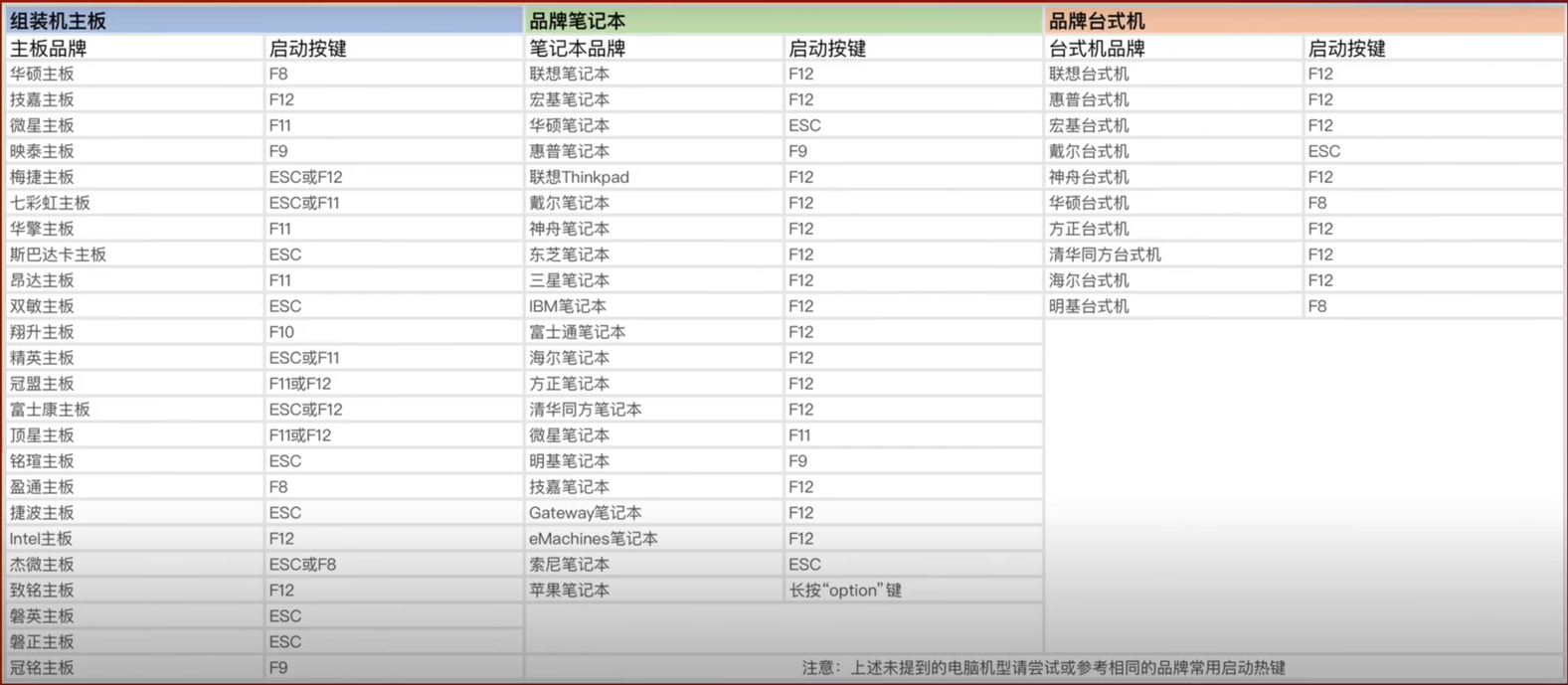
      <![CDATA[<h2 id="BIOS启动按键"><a href="#BIOS启动按键" class="headerlink" title="BIOS启动按键"></a>BIOS启动按键</h2><p>各厂商主板bios按键大全<br><img src="/assets/img/article_3/BIOS%E6%8C%89%E9%94%AE.png" width="50%"></p>]]>
    </summary>
    <title>计算机硬件检测及烤机笔记</title>
    <updated>2023-12-09T11:43:36.000Z</updated>
  </entry>
  <entry>
    <author>
      <name>安亚博</name>
    </author>
    <category term="办公" scheme="https://blog.anzaielf.cn/tags/%E5%8A%9E%E5%85%AC/"/>
    <id>https://blog.anzaielf.cn/2019/11/22/Windows10%E4%B8%AA%E6%80%A7%E5%8C%96%E5%AE%9A%E5%88%B6%E7%89%88%E6%9C%AC%E5%AE%89%E8%A3%85%E7%AC%94%E8%AE%B0/</id>
    <link href="https://blog.anzaielf.cn/2019/11/22/Windows10%E4%B8%AA%E6%80%A7%E5%8C%96%E5%AE%9A%E5%88%B6%E7%89%88%E6%9C%AC%E5%AE%89%E8%A3%85%E7%AC%94%E8%AE%B0/"/>
    <published>2019-11-21T16:39:45.000Z</published>
    <summary>
      <![CDATA[<h2 id="一、光盘镜像文件："><a href="#一、光盘镜像文件：" class="headerlink" title="一、光盘镜像文件："></a>一、光盘镜像文件：</h2><p>1、使用NTLite软件制作定制的ISO安装文件，我一般精简的内容如下：</p>
<p><strong>组件移除：</strong><br>Metro应用<br>OneDrive（微软云盘）<br>MicrosoftEdge<br>MicrosoftEdgeDevToolsClient<br>SmartScreen<br>Windows Defender<br>XboxGameCallableUI<br>零售演示内容<br>屏保<br>Embedded Mode（嵌入模式）<br>Windows Recovery（Windows恢复）<br>安全中心</p>]]>
    </summary>
    <title>Windows10个性化定制版本安装笔记</title>
    <updated>2023-08-31T00:11:32.000Z</updated>
  </entry>
  <entry>
    <author>
      <name>安亚博</name>
    </author>
    <category term="操作系统" scheme="https://blog.anzaielf.cn/tags/%E6%93%8D%E4%BD%9C%E7%B3%BB%E7%BB%9F/"/>
    <id>https://blog.anzaielf.cn/2019/11/03/%E4%B8%8D%E5%90%8C%E6%93%8D%E4%BD%9C%E7%B3%BB%E7%BB%9F%E4%B8%8B%E6%9F%A5%E7%9C%8B%E7%B3%BB%E7%BB%9F%E8%B5%84%E6%BA%90%E7%9A%84%E5%91%BD%E4%BB%A4%E7%AC%94%E8%AE%B0/</id>
    <link href="https://blog.anzaielf.cn/2019/11/03/%E4%B8%8D%E5%90%8C%E6%93%8D%E4%BD%9C%E7%B3%BB%E7%BB%9F%E4%B8%8B%E6%9F%A5%E7%9C%8B%E7%B3%BB%E7%BB%9F%E8%B5%84%E6%BA%90%E7%9A%84%E5%91%BD%E4%BB%A4%E7%AC%94%E8%AE%B0/"/>
    <published>2019-11-03T07:39:32.000Z</published>
    <summary>
      <![CDATA[<h2 id="Linux系统（以SUSE-Linux为例，各Linux基本一致）"><a href="#Linux系统（以SUSE-Linux为例，各Linux基本一致）" class="headerlink" title="Linux系统（以SUSE Linux为例，各Linux基本一致）"></a>Linux系统（以SUSE Linux为例，各Linux基本一致）</h2><p>查看主机信息</p>
<figure class="highlight bash"><table><tbody><tr><td class="gutter"><pre><span class="line">1</span><br><span class="line">2</span><br></pre></td><td class="code"><pre><code class="hljs bash">hostnamectl status <span class="hljs-comment">#查看当前主机信息，status可省略</span><br>hostname <span class="hljs-comment">#适用于CentOS 7以前版本</span><br></code></pre></td></tr></tbody></table></figure>
<p>查看CPU信息</p>
<figure class="highlight bash"><table><tbody><tr><td class="gutter"><pre><span class="line">1</span><br><span class="line">2</span><br><span class="line">3</span><br><span class="line">4</span><br><span class="line">5</span><br><span class="line">6</span><br><span class="line">7</span><br></pre></td><td class="code"><pre><code class="hljs bash">lscpu <br><span class="hljs-comment">#CPU(s) 查看处理器数量</span><br><span class="hljs-comment">#On-line CPU(s) list 查看在线处理器列表</span><br><span class="hljs-comment">#Thread(s) per core/每个核的线程数 查看每个核心的线程数</span><br><span class="hljs-comment">#Core(s) per socket/每个座的核数 查看每个CPU核心数</span><br><span class="hljs-comment">#Socket(s)/座 查看CPU个数</span><br><span class="hljs-built_in">cat</span> /proc/cpuinfo <span class="hljs-comment">#查看CPU线程数每个processor细节</span><br></code></pre></td></tr></tbody></table></figure>]]>
    </summary>
    <title>不同操作系统下查看系统资源的命令笔记</title>
    <updated>2023-08-02T02:14:58.000Z</updated>
  </entry>
  <entry>
    <author>
      <name>安亚博</name>
    </author>
    <category term="杂记" scheme="https://blog.anzaielf.cn/tags/%E6%9D%82%E8%AE%B0/"/>
    <id>https://blog.anzaielf.cn/2019/11/02/51%E5%8D%95%E7%89%87%E6%9C%BA%E4%B8%8EMFRC522%E5%B0%84%E9%A2%91/</id>
    <link href="https://blog.anzaielf.cn/2019/11/02/51%E5%8D%95%E7%89%87%E6%9C%BA%E4%B8%8EMFRC522%E5%B0%84%E9%A2%91/"/>
    <published>2019-11-02T03:16:25.000Z</published>
    <summary>
      <![CDATA[<h1 id="简介"><a href="#简介" class="headerlink" title="简介"></a>简介</h1><p><strong>本项目将使用51单片机对射频模块进行读写操作。</strong> <del>(前期先实现读卡操作，后续补充写卡操作)</del><br><strong>硬件环境</strong>：<br>AT89S52单片机、MFRC522射频模块、ARM9单片机、Mifare one卡、若干杜邦线<br><strong>软件环境</strong>：<br>Windows环境 Keil C51 v802<br>Windows CE<br>串口调试助手</p>]]>
    </summary>
    <title>51单片机与MFRC522射频</title>
    <updated>2023-08-02T02:14:58.000Z</updated>
  </entry>
  <entry>
    <author>
      <name>安亚博</name>
    </author>
    <category term="办公" scheme="https://blog.anzaielf.cn/tags/%E5%8A%9E%E5%85%AC/"/>
    <id>https://blog.anzaielf.cn/2019/10/19/Markdown%E7%AC%94%E8%AE%B0/</id>
    <link href="https://blog.anzaielf.cn/2019/10/19/Markdown%E7%AC%94%E8%AE%B0/"/>
    <published>2019-10-19T14:09:45.000Z</published>
    <summary>
      <![CDATA[<p>Markdown 是一种轻量级标记语言，它允许人们使用易读易写的纯文本格式编写文档。<br>Markdown 编写的文档可以导出 HTML 、Word、图像、PDF、Epub 等多种格式的文档。</p>
<hr>
<h1 id="1-标题"><a href="#1-标题" class="headerlink" title="1.标题"></a>1.标题</h1><h1 id="一级标题在文字下面使用"><a href="#一级标题在文字下面使用" class="headerlink" title="一级标题在文字下面使用======"></a>一级标题在文字下面使用======</h1><h2 id="二级标题在文字下面使用——"><a href="#二级标题在文字下面使用——" class="headerlink" title="二级标题在文字下面使用——"></a>二级标题在文字下面使用——</h2><h1 id="使用井号也表示标题，1个井号代表一级标题"><a href="#使用井号也表示标题，1个井号代表一级标题" class="headerlink" title="使用井号也表示标题，1个井号代表一级标题"></a>使用井号也表示标题，1个井号代表一级标题</h1><h2 id="使用井号也可以表示标题，2个井号代表二级标题"><a href="#使用井号也可以表示标题，2个井号代表二级标题" class="headerlink" title="使用井号也可以表示标题，2个井号代表二级标题"></a>使用井号也可以表示标题，2个井号代表二级标题</h2><h6 id="最多使用六个井号，支持到六级标题"><a href="#最多使用六个井号，支持到六级标题" class="headerlink" title="最多使用六个井号，支持到六级标题"></a>最多使用六个井号，支持到六级标题</h6><hr>]]>
    </summary>
    <title>Markdown笔记</title>
    <updated>2023-08-02T02:14:58.000Z</updated>
  </entry>
  <entry>
    <author>
      <name>安亚博</name>
    </author>
    <category term="杂记" scheme="https://blog.anzaielf.cn/tags/%E6%9D%82%E8%AE%B0/"/>
    <id>https://blog.anzaielf.cn/2019/10/04/%E6%88%91%E7%9A%84%E7%AC%AC%E4%B8%80%E7%AF%87%E5%8D%9A%E5%AE%A2/</id>
    <link href="https://blog.anzaielf.cn/2019/10/04/%E6%88%91%E7%9A%84%E7%AC%AC%E4%B8%80%E7%AF%87%E5%8D%9A%E5%AE%A2/"/>
    <published>2019-10-03T18:56:54.000Z</published>
    <summary>
      <![CDATA[<h1 id="简介"><a href="#简介" class="headerlink" title="简介"></a>简介</h1><p>这是一个基于Hexo框架的静态博客。此博客用来更新我的日常技术总结文档，用来记录以便后续查找。博客内容使用Markdown编辑器，我的第一篇博客就来尝试使用Markdown来学习一下。<br>操作系统：Windows10<br>软件版本：node.js 12.13.1，npm 6.12.1，hexo 3.9.0</p>
<h2 id="环境搭建"><a href="#环境搭建" class="headerlink" title="环境搭建"></a>环境搭建</h2><p>1、首先下载Node.js<br>下载地址：<a href="https://nodejs.org/" data-md-link=""><span class="md-link-icon ui-icon" aria-hidden="true"><svg xmlns="http://www.w3.org/2000/svg" width="1em" height="1em" viewBox="0 0 24 24"><g fill="currentColor"><g opacity=".5"><path d="M19.7388 4.26118C17.0572 1.57961 12.7095 1.57961 10.0279 4.26118L9.30707 4.98203C9.01418 5.27492 9.01418 5.7498 9.30707 6.04269C9.59997 6.33558 10.0748 6.33558 10.3677 6.04269L11.0886 5.32184C13.1844 3.22605 16.5823 3.22605 18.6781 5.32184C20.7739 7.41763 20.7739 10.8156 18.6781 12.9114L17.9573 13.6322C17.6644 13.9251 17.6644 14.4 17.9573 14.6929C18.2502 14.9858 18.725 14.9858 19.0179 14.6929L19.7388 13.972C22.4203 11.2905 22.4203 6.94276 19.7388 4.26118Z"></path><path d="M6.04269 9.30707C6.33558 9.59997 6.33558 10.0748 6.04269 10.3677L5.32184 11.0886C3.22605 13.1844 3.22605 16.5823 5.32184 18.6781C7.41763 20.7739 10.8156 20.7739 12.9114 18.6781L13.6322 17.9573C13.9251 17.6644 14.4 17.6644 14.6929 17.9573C14.9858 18.2501 14.9858 18.725 14.6929 19.0179L13.972 19.7388C11.2905 22.4203 6.94276 22.4203 4.26118 19.7388C1.57961 17.0572 1.57961 12.7095 4.26118 10.0279L4.98203 9.30707C5.27492 9.01418 5.7498 9.01418 6.04269 9.30707Z"></path></g><path d="M14.6933 9.30707C14.9862 9.59997 14.9862 10.0748 14.6933 10.3677L10.3682 14.6928C10.0753 14.9857 9.60045 14.9857 9.30756 14.6928C9.01467 14.3999 9.01467 13.9251 9.30756 13.6322L13.6327 9.30707C13.9255 9.01418 14.4004 9.01418 14.6933 9.30707Z"></path></g></svg></span>https://nodejs.org</a>（根据系统环境选择版本，下载LTS长期支持版本）。<br>2、安装下载的安装包，我使用的Windows10系统，选择安装到D盘，其他默认下一步。<br>3、安装完成后，有两个组件，一个是nodejs，一个是npm。<br>	<br><strong>Mac系统</strong>：<br>打开终端，切换到root用户<br>查看nodejs，npm的版本</p>
<figure class="highlight bash"><table><tbody><tr><td class="gutter"><pre><span class="line">1</span><br><span class="line">2</span><br></pre></td><td class="code"><pre><code class="hljs bash">node –v<br>npm –v<br></code></pre></td></tr></tbody></table></figure>]]>
    </summary>
    <title>我的第一篇博客</title>
    <updated>2026-02-28T05:13:18.000Z</updated>
  </entry>
</feed>
